> ## Documentation Index
> Fetch the complete documentation index at: https://docs.typebot.com/llms.txt
> Use this file to discover all available pages before exploring further.
# Results
Once your bot is [published](/editor/publish) you start to collect results from your users. You can see all the results in the `Results` tab of your bot.
You might be surprised to see partially filled results. This is normal and
expected. Your typebot collects the answers as soon as they are filled by the
user, even if the user doesn't complete the whole conversation. This is useful
to understand where users are dropping off and to improve your bot. This is
one of Typebot's greatest features.
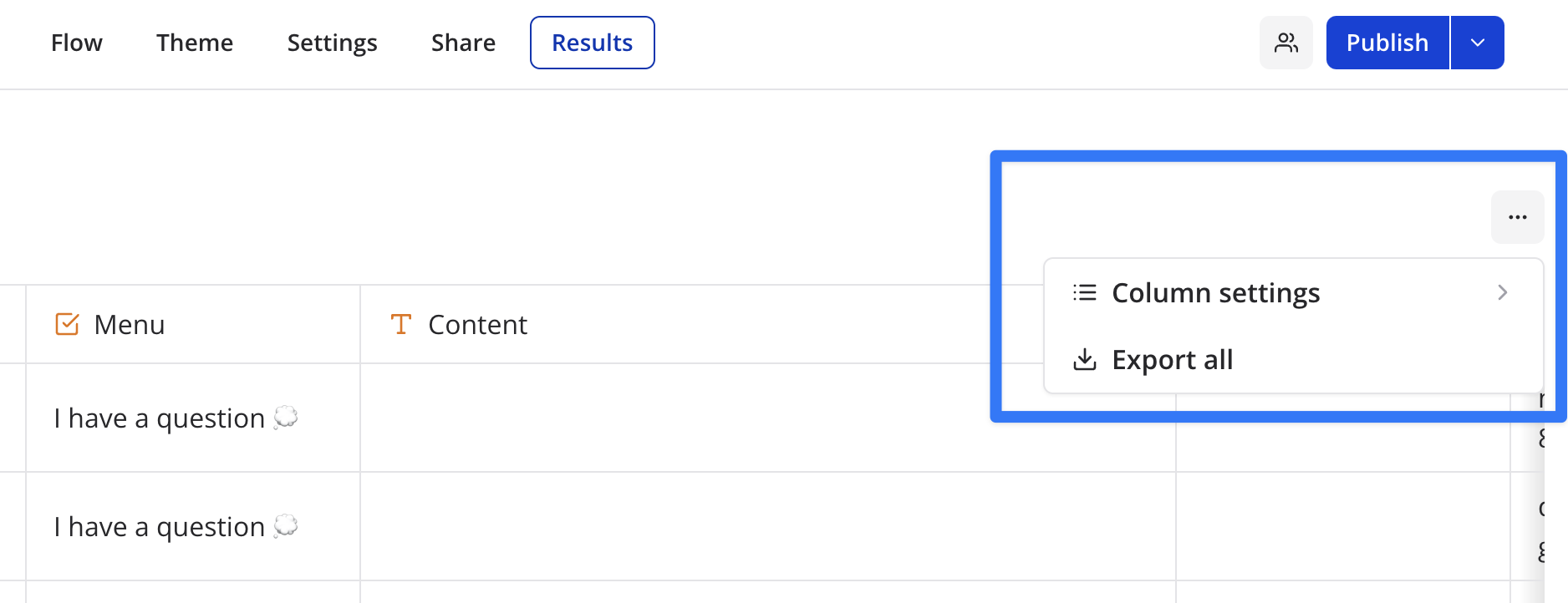
## More options menu
 ## Time filter
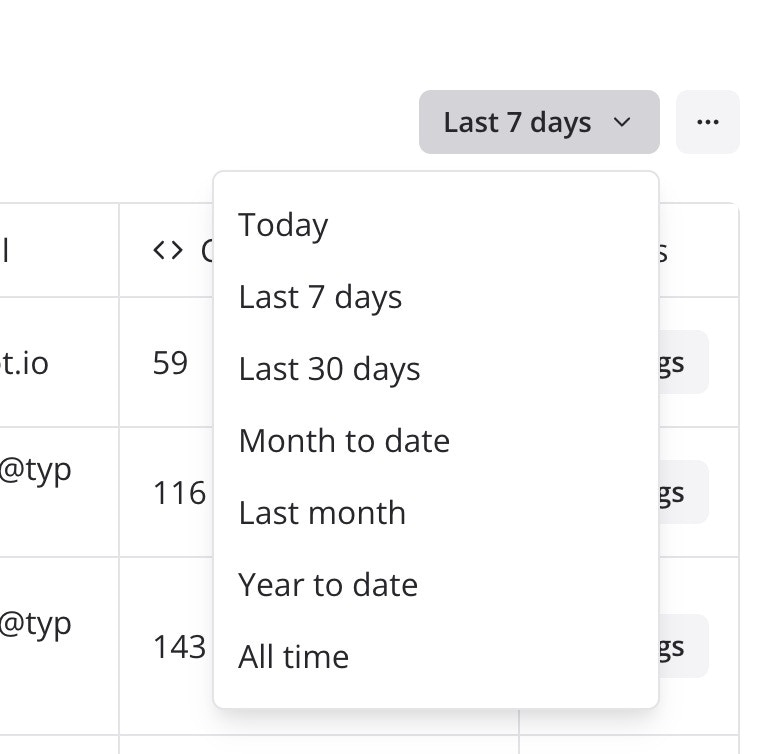
By default, results from the last 7 days are displayed. You can change this by clicking on the date filter button:
## Time filter
By default, results from the last 7 days are displayed. You can change this by clicking on the date filter button:
 ### Export all results to a CSV file
You can export all results to a CSV file. This will download a CSV file with all the results from the current bot.
The `Include deleted blocks` option, if enabled, will include answers from blocks that doesn't exist any more (was part of a previous version of your bot).
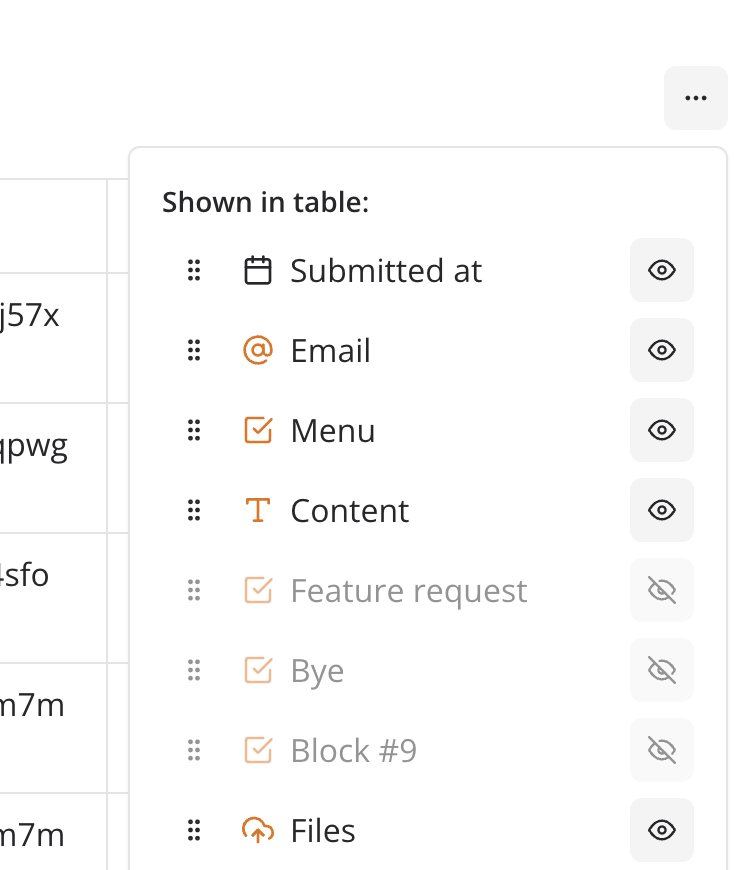
### Re-arrange and hide specific columns
To make your result table more readable, you can re-arrange and hide specific columns.
### Export all results to a CSV file
You can export all results to a CSV file. This will download a CSV file with all the results from the current bot.
The `Include deleted blocks` option, if enabled, will include answers from blocks that doesn't exist any more (was part of a previous version of your bot).
### Re-arrange and hide specific columns
To make your result table more readable, you can re-arrange and hide specific columns.
 ## Transcript
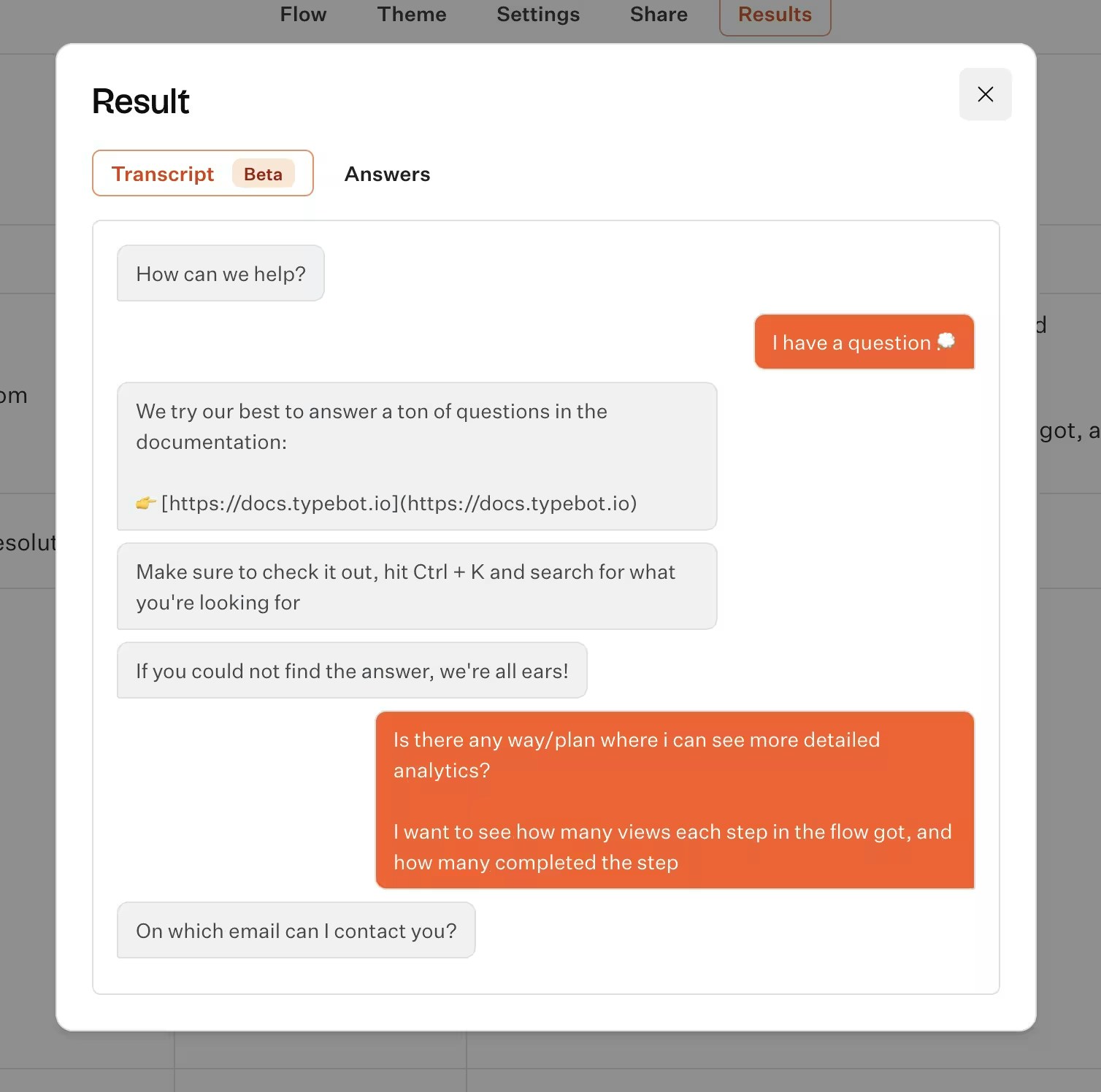
You can see the transcript of a result by expanding the result row, clicking on the `Open` button when hovering the first row cell.
## Transcript
You can see the transcript of a result by expanding the result row, clicking on the `Open` button when hovering the first row cell.
 ## Logs
Typebot does not expose a global activity feed. Logs are attached to individual results, so they live inside the `Results` table.
To see what happened during a conversation (including integration errors like Send email, Google Sheets, or HTTP request), open a specific result and look at the logs column. Each row has a "See logs" button:
## Logs
Typebot does not expose a global activity feed. Logs are attached to individual results, so they live inside the `Results` table.
To see what happened during a conversation (including integration errors like Send email, Google Sheets, or HTTP request), open a specific result and look at the logs column. Each row has a "See logs" button:
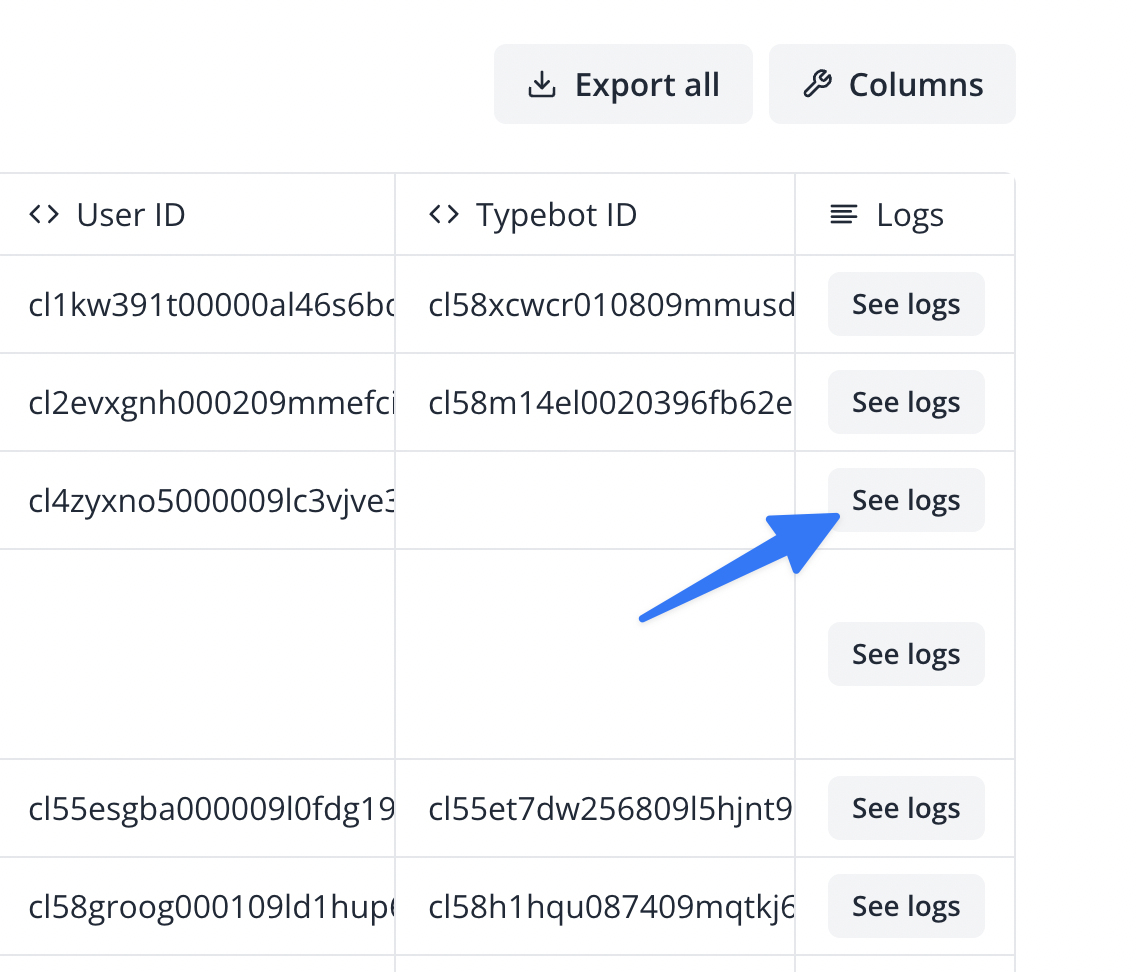 Logs include integration outputs, errors, and warnings for that specific conversation. If an integration silently fails, this is where to look first.