> ## Documentation Index
> Fetch the complete documentation index at: https://docs.typebot.com/llms.txt
> Use this file to discover all available pages before exploring further.
# Zendesk
## Zendesk Messaging
With the Zendesk Chat block, you can open a Zendesk Messaging live chat window to allow a user to chat with a Zendesk agent.
## How to find my Zendesk `Key ID` and `Secret Key`?
To configure your Web Widget or mobile SDK for visitor authentication, you first need a signing key. A signing key is a type of credential which is comprised of a key id (kid) and a shared secret.
You can view, create, and delete signing keys by clicking the Account icon in the Admin Center sidebar, and then selecting End user authentication under the Security heading ( you will need to be a Zendesk Admin). The shared secret will only be displayed in its entirety when the signing key is first created.
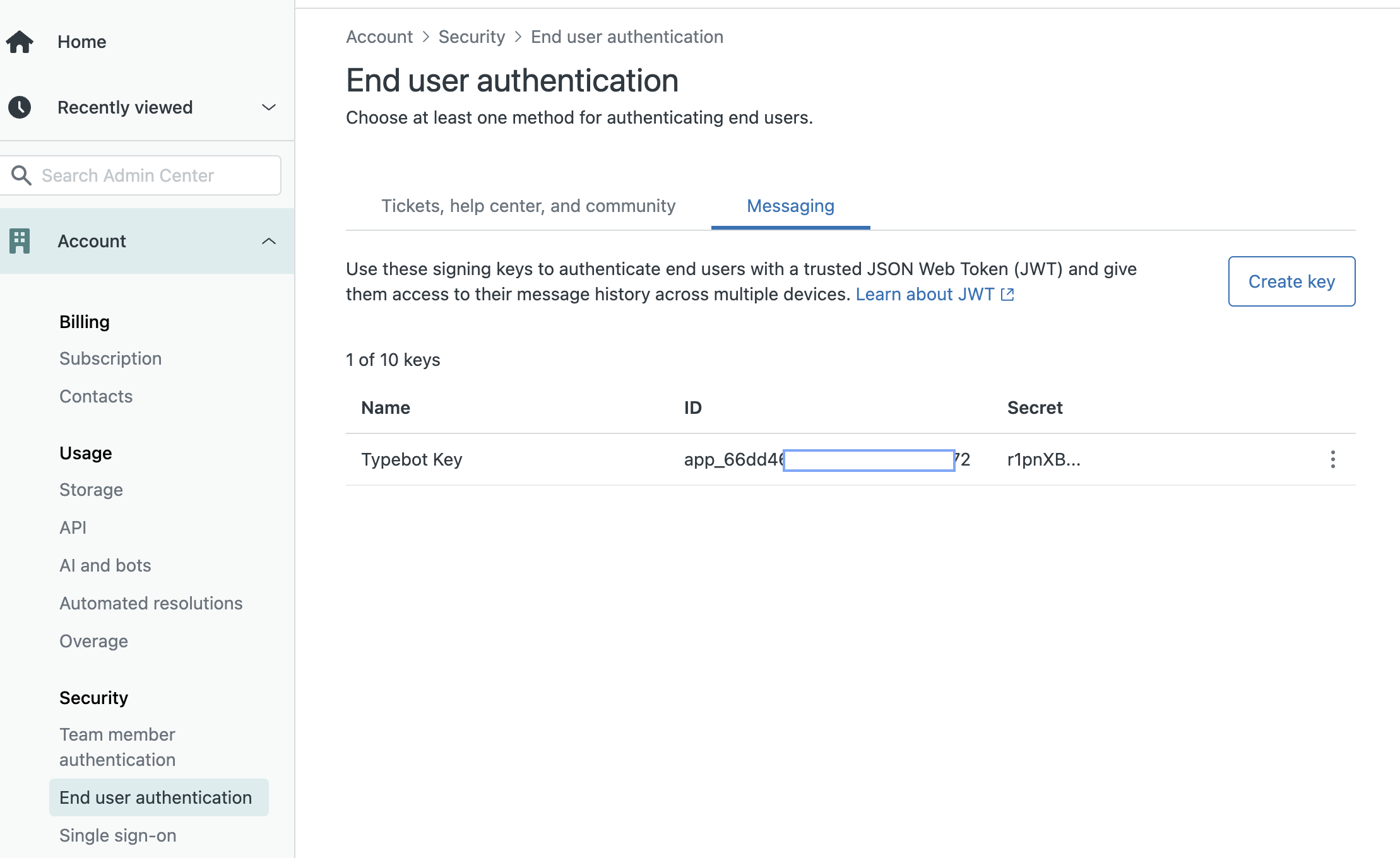 Learn more here: [https://developer.zendesk.com/documentation/zendesk-web-widget-sdks/sdks/web/enabling\_auth\_visitors/#generating-a-signing-key](https://developer.zendesk.com/documentation/zendesk-web-widget-sdks/sdks/web/enabling_auth_visitors/#generating-a-signing-key)
## Open Web Widget
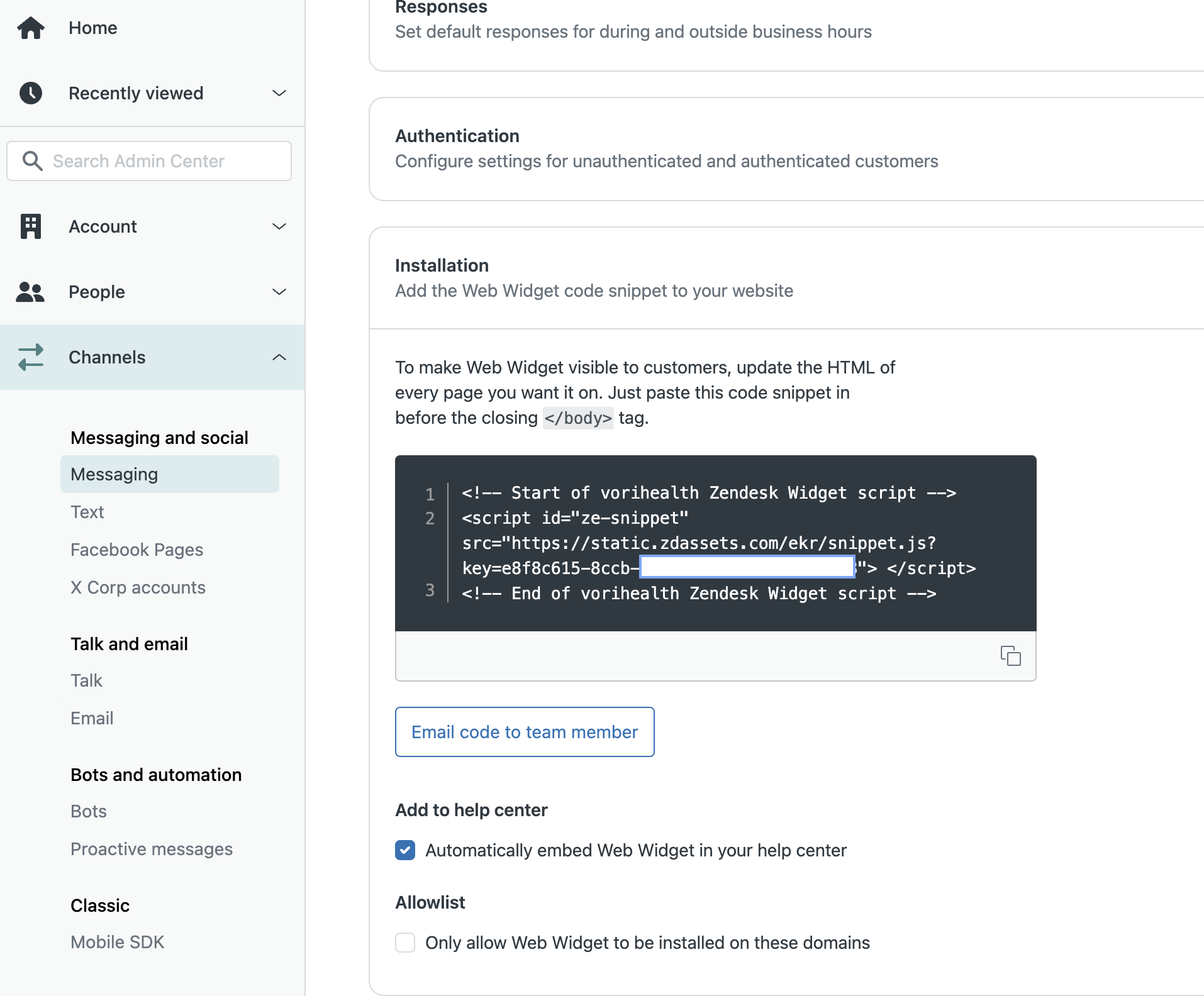
This action opens the Messenging Web Widget. It requires the Web Widget `Key` to be set. You can find the key by going to `Channels -> Messaging`, then click on the Web Widget you wish to configure. Scroll down to 'Installation' and expand that section. In the script code block, copy the `key` value and use that for the `Key` setting.
Note, this only works on web clients.
Learn more here: [https://developer.zendesk.com/documentation/zendesk-web-widget-sdks/sdks/web/enabling\_auth\_visitors/#generating-a-signing-key](https://developer.zendesk.com/documentation/zendesk-web-widget-sdks/sdks/web/enabling_auth_visitors/#generating-a-signing-key)
## Open Web Widget
This action opens the Messenging Web Widget. It requires the Web Widget `Key` to be set. You can find the key by going to `Channels -> Messaging`, then click on the Web Widget you wish to configure. Scroll down to 'Installation' and expand that section. In the script code block, copy the `key` value and use that for the `Key` setting.
Note, this only works on web clients.
 If the `User ID` option is set, a JWT token will be created and passed to Zendesk, to authenticate the user in Zendesk. If you need `Name` or `Email` included in the JWT token, set those options also.