> ## Documentation Index
> Fetch the complete documentation index at: https://docs.typebot.com/llms.txt
> Use this file to discover all available pages before exploring further.
# OpenAI
export const LoomVideo = ({id}) =>
;
## Create chat completion
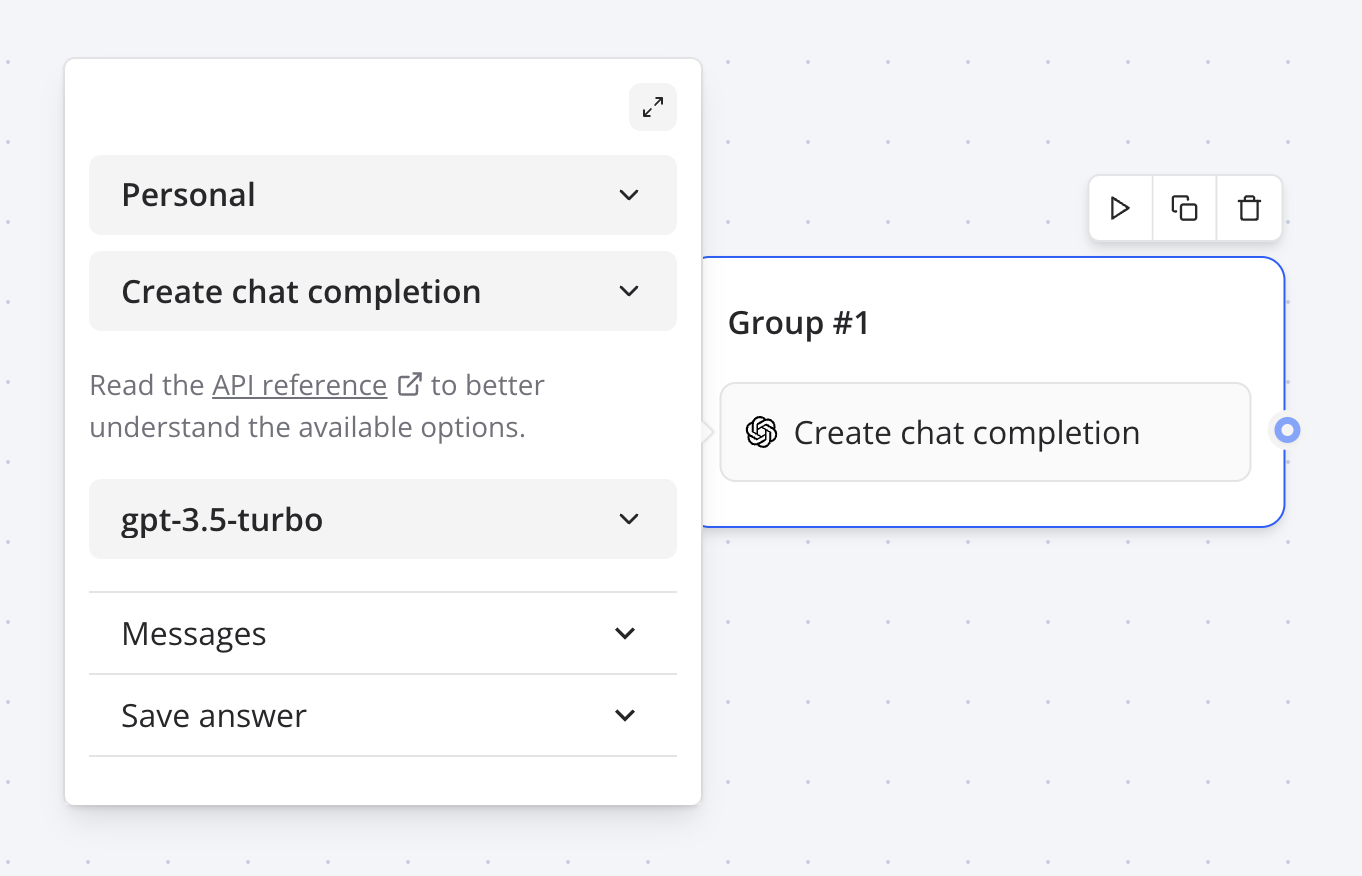
With the OpenAI block, you can create a chat completion based on your user queries and display the answer back to your typebot.
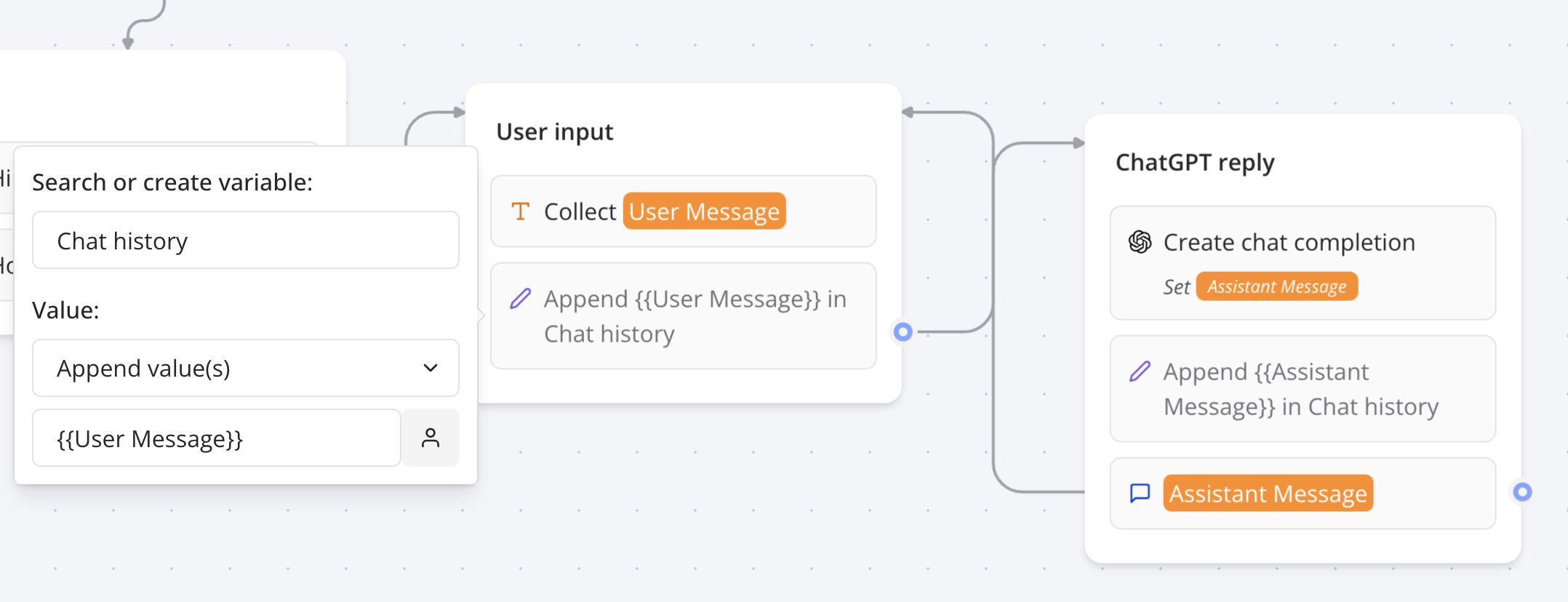
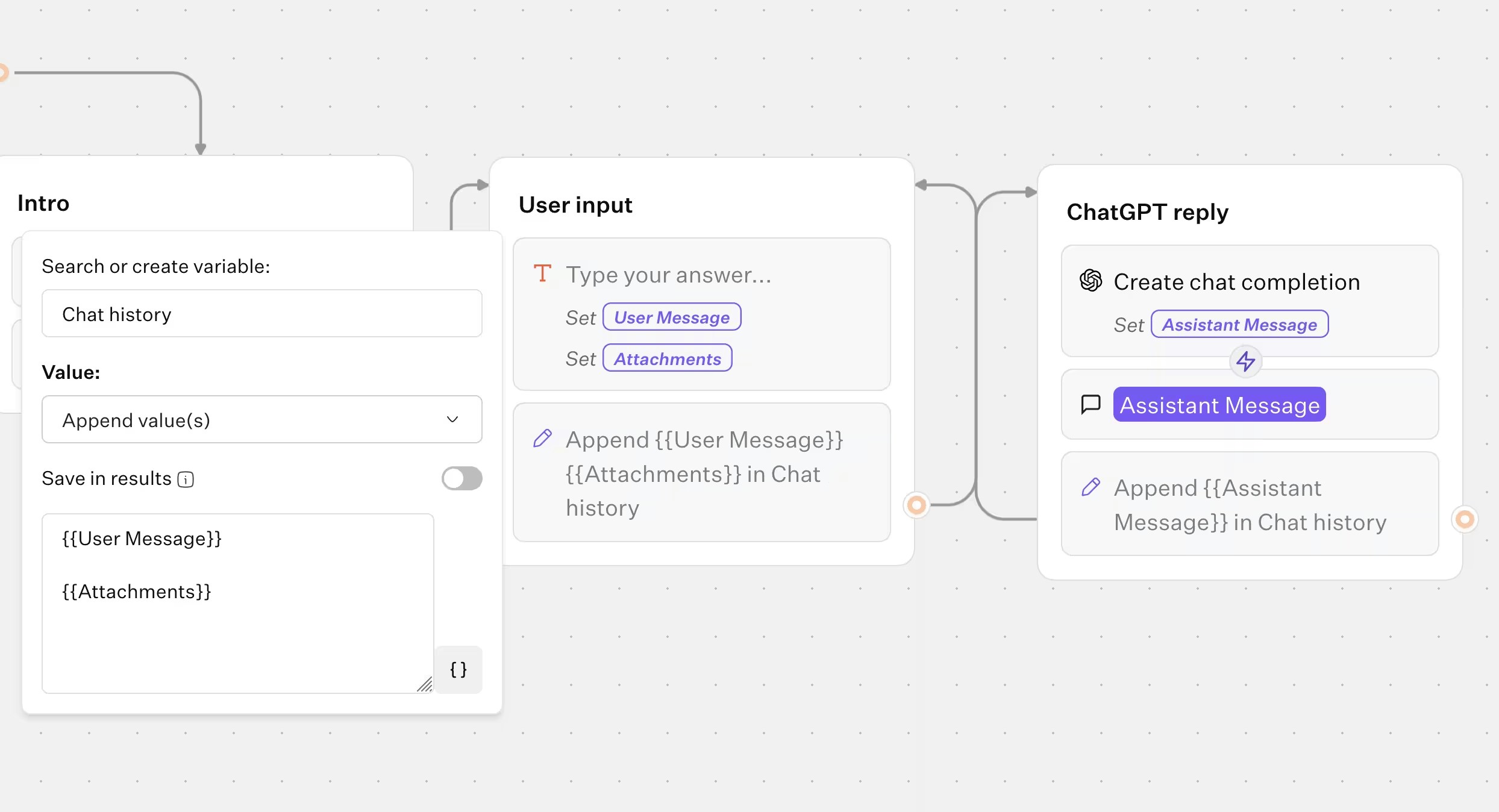
 This integration comes with a convenient message type called **Dialogue**. It allows you to easily pass a sequence of saved assistant / user messages history to OpenAI:
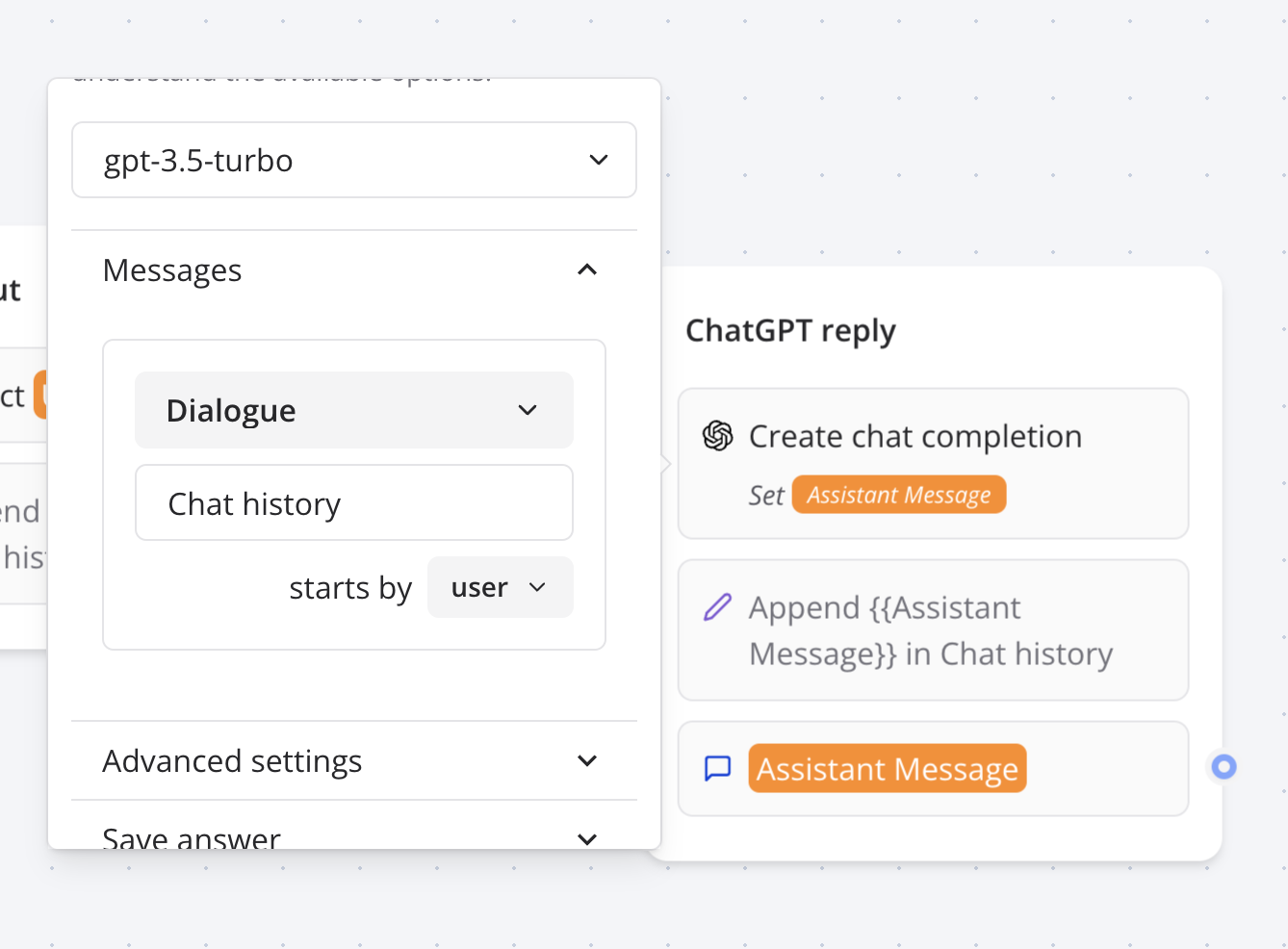
 Then you can give the OpenAI block access to this sequence of messages:
 ### Tools
The tools section allows you to add functions that the OpenAI model can execute. Here is an example of a function named `getWeather` that returns 'Sunny and warm' if you ask about the weather of Paris and 'Rainy and cold' if you ask for any other city 😂.
A more useful example would be, of course, to call an API to get the weather of the city the user is asking about.
### Tools
The tools section allows you to add functions that the OpenAI model can execute. Here is an example of a function named `getWeather` that returns 'Sunny and warm' if you ask about the weather of Paris and 'Rainy and cold' if you ask for any other city 😂.
A more useful example would be, of course, to call an API to get the weather of the city the user is asking about.
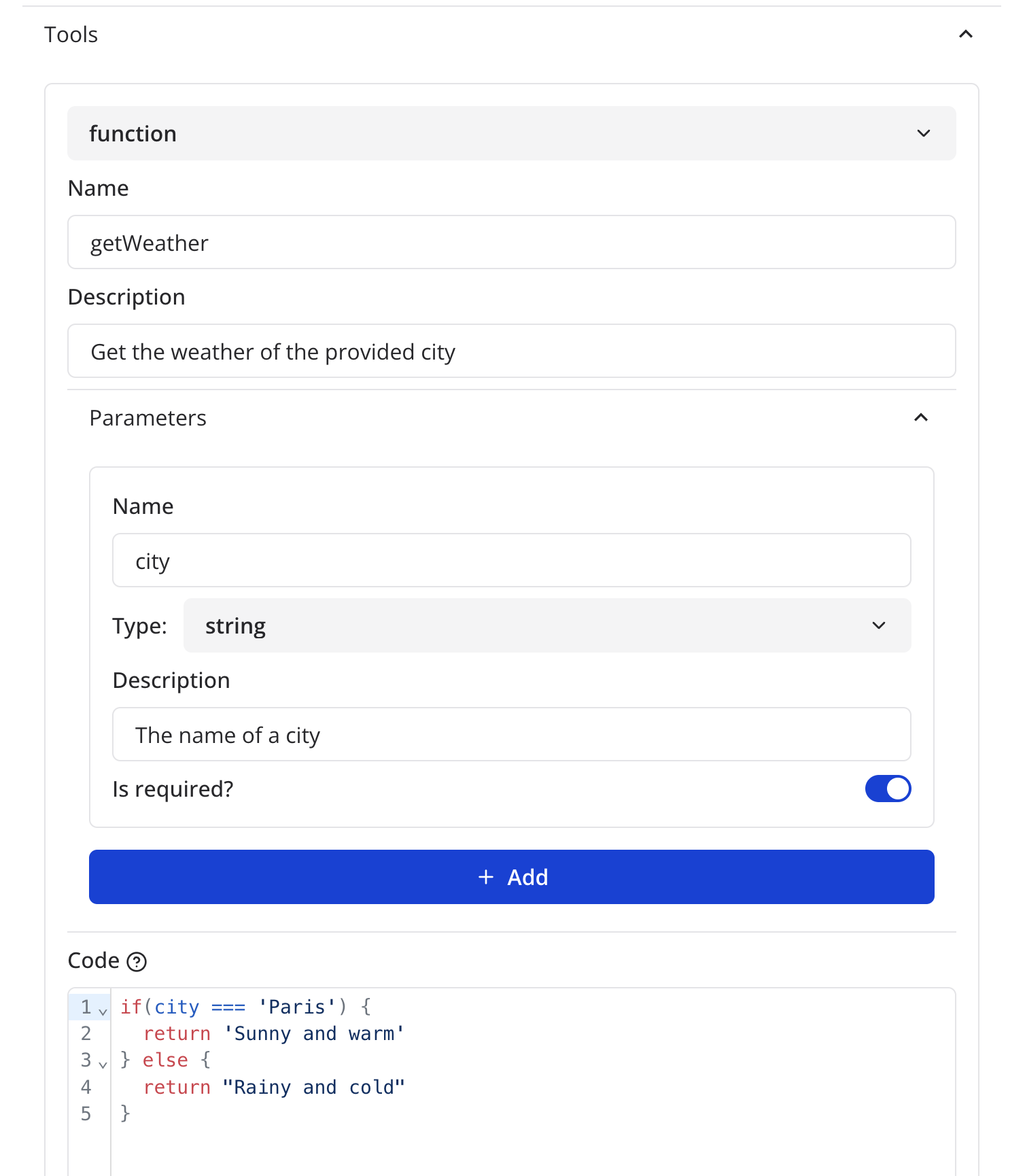 As you can see, the code block expects the body of the Javascript function. You should use the `return` keyword to return value to give back to OpenAI as the result of the function.
If you'd like to set variables directly in this code block, you can use the [`setVariable` function](../logic/script#setvariable-function).
A function is executed on the server so it comes with [some limitations listed
here](../logic/script#limitations-on-scripts-executed-on-server).
## Ask Model
This action uses OpenAI's [Responses API](https://platform.openai.com/docs/api-reference/responses) to generate model responses with optional built-in tools and multi-turn conversation support.
### Basic setup
Select a **Model** (e.g. `gpt-5.4`), write a **Message** (typically the user's input), and optionally provide **Instructions** (system-level prompt for the model).
### Multi-turn conversations
To remember conversation history across messages, assign a variable to the **Response ID** field. If the variable is empty, a new conversation is started. On each response, the variable is automatically updated so the next invocation continues the same conversation.
### Built-in tools
You can enable the following OpenAI built-in tools in the **Built-in tools** section:
* **File Search** — select one or more vector stores from your OpenAI account. The model will search them for relevant content when answering.
* **Web Search** — let the model search the web for up-to-date information.
* **Code Interpreter** — let the model write and execute Python code.
### Functions
The **Functions** section lets you define custom functions the model can call. Each function has a name, description, typed parameters, and a JavaScript code block that returns a value.
The code block expects the body of a Javascript function. Use the `return` keyword to return a value back to the model.
If you'd like to set variables directly in this code block, you can use the [`setVariable` function](../logic/script#setvariable-function).
A function is executed on the server so it comes with [some limitations listed
here](../logic/script#limitations-on-scripts-executed-on-server).
:::note
**Migrating from Ask Assistant?** The Ask Assistant action (based on the deprecated OpenAI Assistants API) will be removed in August 2026. To migrate, create a new Ask Model block and configure the model, instructions, and tools directly — the Responses API no longer requires an assistant ID.
:::
## Create speech
This action allows you to transform a text input into an audio URL that you can reuse in your bot.
:::note
The generated audio URLs are temporary and expire after 7 days. If you need to store them, make sure to download them before they expire.
:::
## Create transcription
This action allows you to transcribe a audio URL into text.
You can optionally select a model (defaults to `whisper-1` for existing flows).
Provide a **Prompt** to guide the transcription (for example, include a list of
domain-specific terms or proper nouns).
## Generate variables
This action allows you to set variables based on a prompt.
Let's you want to want to extract a specific bit of information based on user's last message. You could use this block action to extract for example his name. To do that you could add the following prompt:
```txt theme={null}
Extract user's information from user's last message: "{{Last message}}"
```
This you could provide for example the following variables: `Name`, `Email`
If the `Last Message` variable is set to "My name is John and my email is [john@gmail.com](mailto:john@gmail.com)", then the `Name` and `Email` variables will be set to `John` and `john@gmail.com` respectively.
## Using Multiple Open AI Blocks: Tips and Tricks
In this video, I discuss some important things to keep in mind when using multiple Open AI blocks consecutively. I provide an example where we ask the user for a topic, generate a summary, and display a list of authors.
I explain that streaming messages is not possible when they are prefixed or suffixed by text, and that all blocks need to compute before displaying anything.
I also demonstrate how formatting can be affected by the presence of text before a message. Watch this video to learn how to optimize your use of multiple Open AI blocks.
## Vision support
`Create Chat Message` and `Ask Model` blocks support vision. This means that Typebot automatically detects images URL in any user message provided to OpenAI and parse it. The URL needs to be isolated from the rest of the text message to be properly detected. Here is an example of a message with an image URL:
If the selected model is [not compatible with vision](https://platform.openai.com/docs/models), the image URL will be parsed as a plain text message.
```
What's in this picture?
https://domain.com/image.png
```
So you can append any attachments provided by the user to the Dialogue variable and the model will automatically detect the image URL.
As you can see, the code block expects the body of the Javascript function. You should use the `return` keyword to return value to give back to OpenAI as the result of the function.
If you'd like to set variables directly in this code block, you can use the [`setVariable` function](../logic/script#setvariable-function).
A function is executed on the server so it comes with [some limitations listed
here](../logic/script#limitations-on-scripts-executed-on-server).
## Ask Model
This action uses OpenAI's [Responses API](https://platform.openai.com/docs/api-reference/responses) to generate model responses with optional built-in tools and multi-turn conversation support.
### Basic setup
Select a **Model** (e.g. `gpt-5.4`), write a **Message** (typically the user's input), and optionally provide **Instructions** (system-level prompt for the model).
### Multi-turn conversations
To remember conversation history across messages, assign a variable to the **Response ID** field. If the variable is empty, a new conversation is started. On each response, the variable is automatically updated so the next invocation continues the same conversation.
### Built-in tools
You can enable the following OpenAI built-in tools in the **Built-in tools** section:
* **File Search** — select one or more vector stores from your OpenAI account. The model will search them for relevant content when answering.
* **Web Search** — let the model search the web for up-to-date information.
* **Code Interpreter** — let the model write and execute Python code.
### Functions
The **Functions** section lets you define custom functions the model can call. Each function has a name, description, typed parameters, and a JavaScript code block that returns a value.
The code block expects the body of a Javascript function. Use the `return` keyword to return a value back to the model.
If you'd like to set variables directly in this code block, you can use the [`setVariable` function](../logic/script#setvariable-function).
A function is executed on the server so it comes with [some limitations listed
here](../logic/script#limitations-on-scripts-executed-on-server).
:::note
**Migrating from Ask Assistant?** The Ask Assistant action (based on the deprecated OpenAI Assistants API) will be removed in August 2026. To migrate, create a new Ask Model block and configure the model, instructions, and tools directly — the Responses API no longer requires an assistant ID.
:::
## Create speech
This action allows you to transform a text input into an audio URL that you can reuse in your bot.
:::note
The generated audio URLs are temporary and expire after 7 days. If you need to store them, make sure to download them before they expire.
:::
## Create transcription
This action allows you to transcribe a audio URL into text.
You can optionally select a model (defaults to `whisper-1` for existing flows).
Provide a **Prompt** to guide the transcription (for example, include a list of
domain-specific terms or proper nouns).
## Generate variables
This action allows you to set variables based on a prompt.
Let's you want to want to extract a specific bit of information based on user's last message. You could use this block action to extract for example his name. To do that you could add the following prompt:
```txt theme={null}
Extract user's information from user's last message: "{{Last message}}"
```
This you could provide for example the following variables: `Name`, `Email`
If the `Last Message` variable is set to "My name is John and my email is [john@gmail.com](mailto:john@gmail.com)", then the `Name` and `Email` variables will be set to `John` and `john@gmail.com` respectively.
## Using Multiple Open AI Blocks: Tips and Tricks
In this video, I discuss some important things to keep in mind when using multiple Open AI blocks consecutively. I provide an example where we ask the user for a topic, generate a summary, and display a list of authors.
I explain that streaming messages is not possible when they are prefixed or suffixed by text, and that all blocks need to compute before displaying anything.
I also demonstrate how formatting can be affected by the presence of text before a message. Watch this video to learn how to optimize your use of multiple Open AI blocks.
## Vision support
`Create Chat Message` and `Ask Model` blocks support vision. This means that Typebot automatically detects images URL in any user message provided to OpenAI and parse it. The URL needs to be isolated from the rest of the text message to be properly detected. Here is an example of a message with an image URL:
If the selected model is [not compatible with vision](https://platform.openai.com/docs/models), the image URL will be parsed as a plain text message.
```
What's in this picture?
https://domain.com/image.png
```
So you can append any attachments provided by the user to the Dialogue variable and the model will automatically detect the image URL.
 ## Troobleshooting
### Error message: "OpenAI block returned error"
It means your OpenAI block is not configured properly. Please check the following:
* You have selected an OpenAI account
* You have at least 1 **user** message or a **Dialogue** message set up.
### It returns an empty message
It most likely mean that you exceeded your OpenAI free quota. Add a payment method to your OpenAI account to continue using it.
## Troobleshooting
### Error message: "OpenAI block returned error"
It means your OpenAI block is not configured properly. Please check the following:
* You have selected an OpenAI account
* You have at least 1 **user** message or a **Dialogue** message set up.
### It returns an empty message
It most likely mean that you exceeded your OpenAI free quota. Add a payment method to your OpenAI account to continue using it.