> ## Documentation Index
> Fetch the complete documentation index at: https://docs.typebot.com/llms.txt
> Use this file to discover all available pages before exploring further.
# NocoDB
export const YoutubeVideo = ({id}) =>
;
With the NocoDB block, you can create, update or get data from your NocoDB tables.
## How to find my `Table ID`?
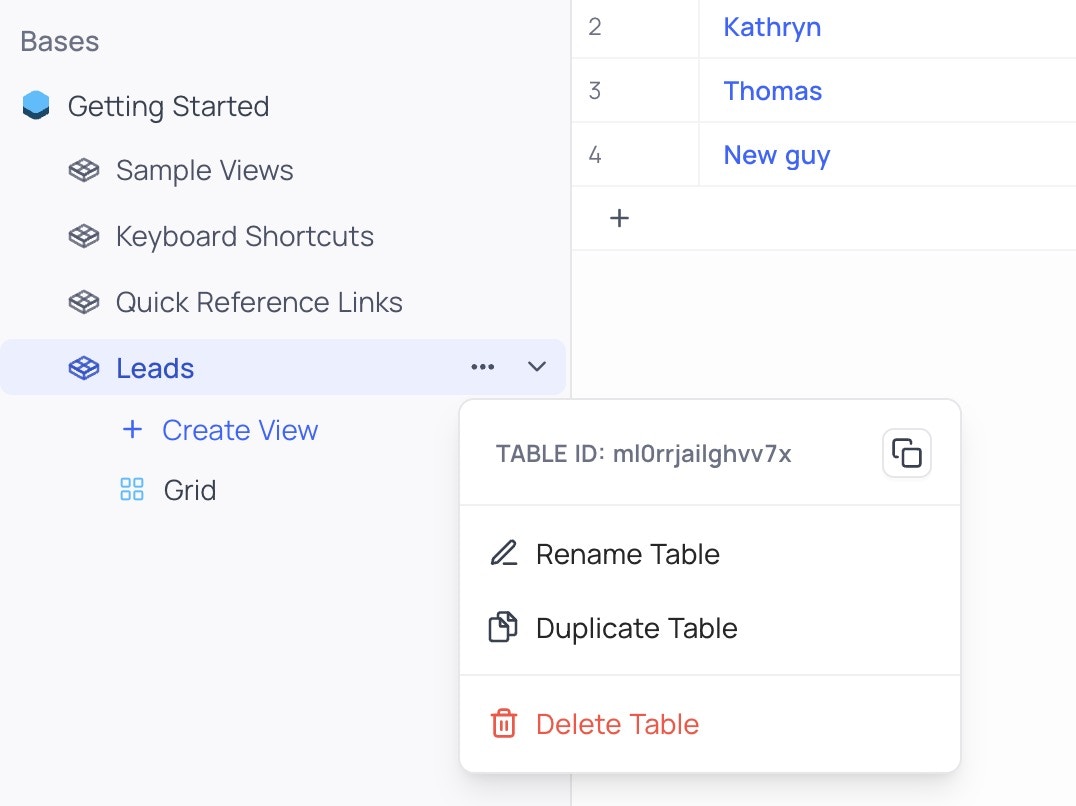
To find your `Table ID`, you need to go to your NocoDB dashboard and click on the 3 dots button next to your table name.
## Search Records
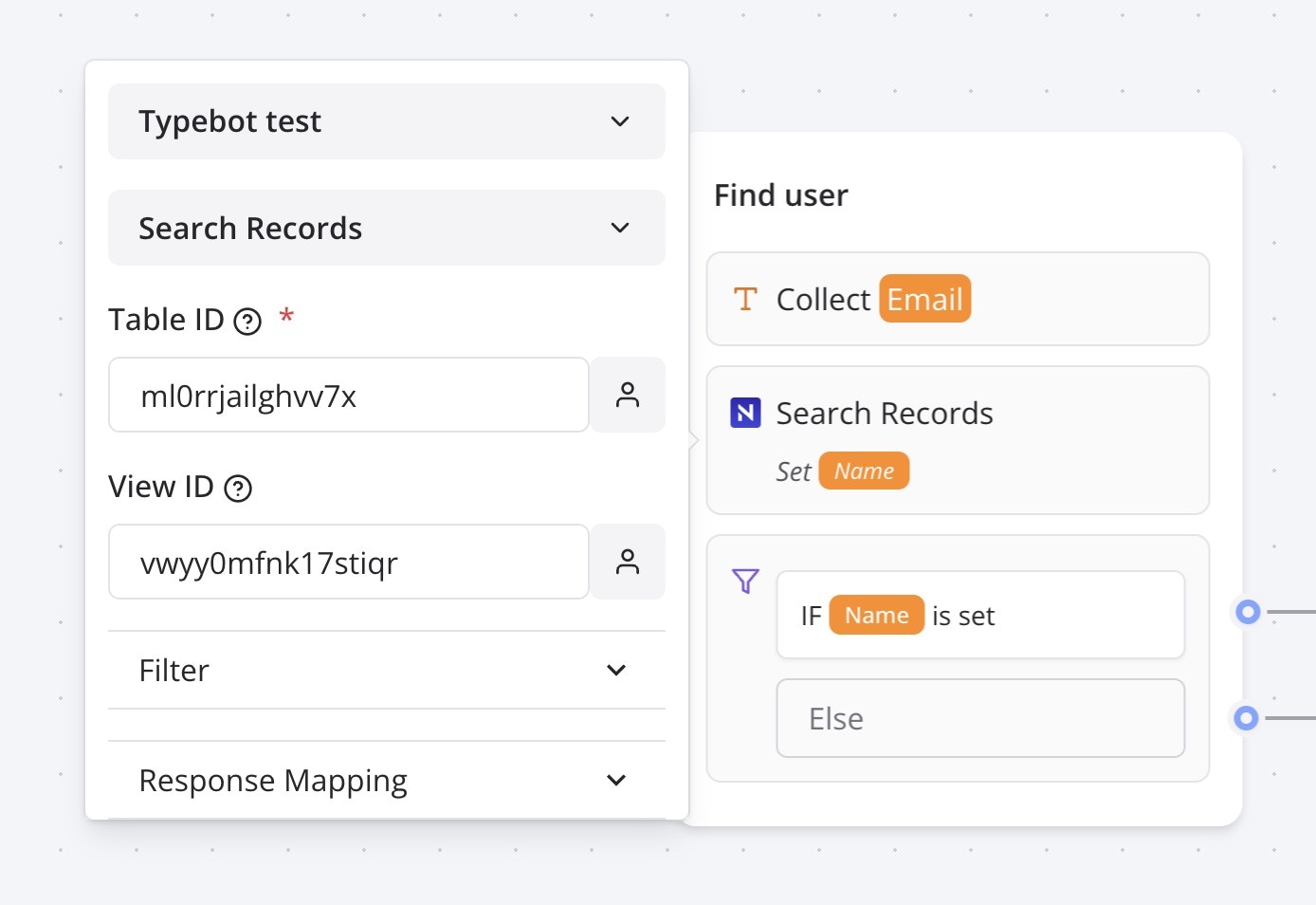
This action allows you to search for existing records in a table. It requires your `Table ID` and can optionally take a `View ID` to search in a specific view.
You can configure the filter to return `All`, `First`, `Last` or `Random` found records.
Then all you need to do is to map the found fields to variables that you can re-use on your bot.
 ## Search Records
This action allows you to search for existing records in a table. It requires your `Table ID` and can optionally take a `View ID` to search in a specific view.
## Search Records
This action allows you to search for existing records in a table. It requires your `Table ID` and can optionally take a `View ID` to search in a specific view.
 You can configure the filter to return `All`, `First`, `Last` or `Random` found records.
Then all you need to do is to map the found fields to variables that you can re-use on your bot.
You can configure the filter to return `All`, `First`, `Last` or `Random` found records.
Then all you need to do is to map the found fields to variables that you can re-use on your bot.