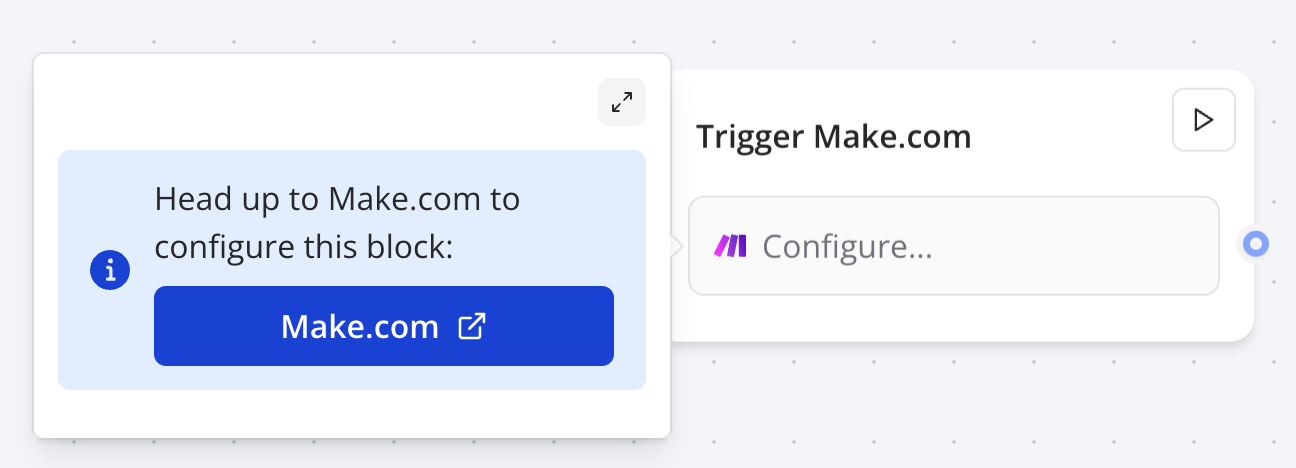
 2. Follow the instructions on Make.com to create and enable your scenario.
3. Run the scenario on Make.com.
4. Go back to Typebot, click on your Make.com block and click on "Test the request".
5. The scenario will be triggered on Make.com.
## Return data from Make.com
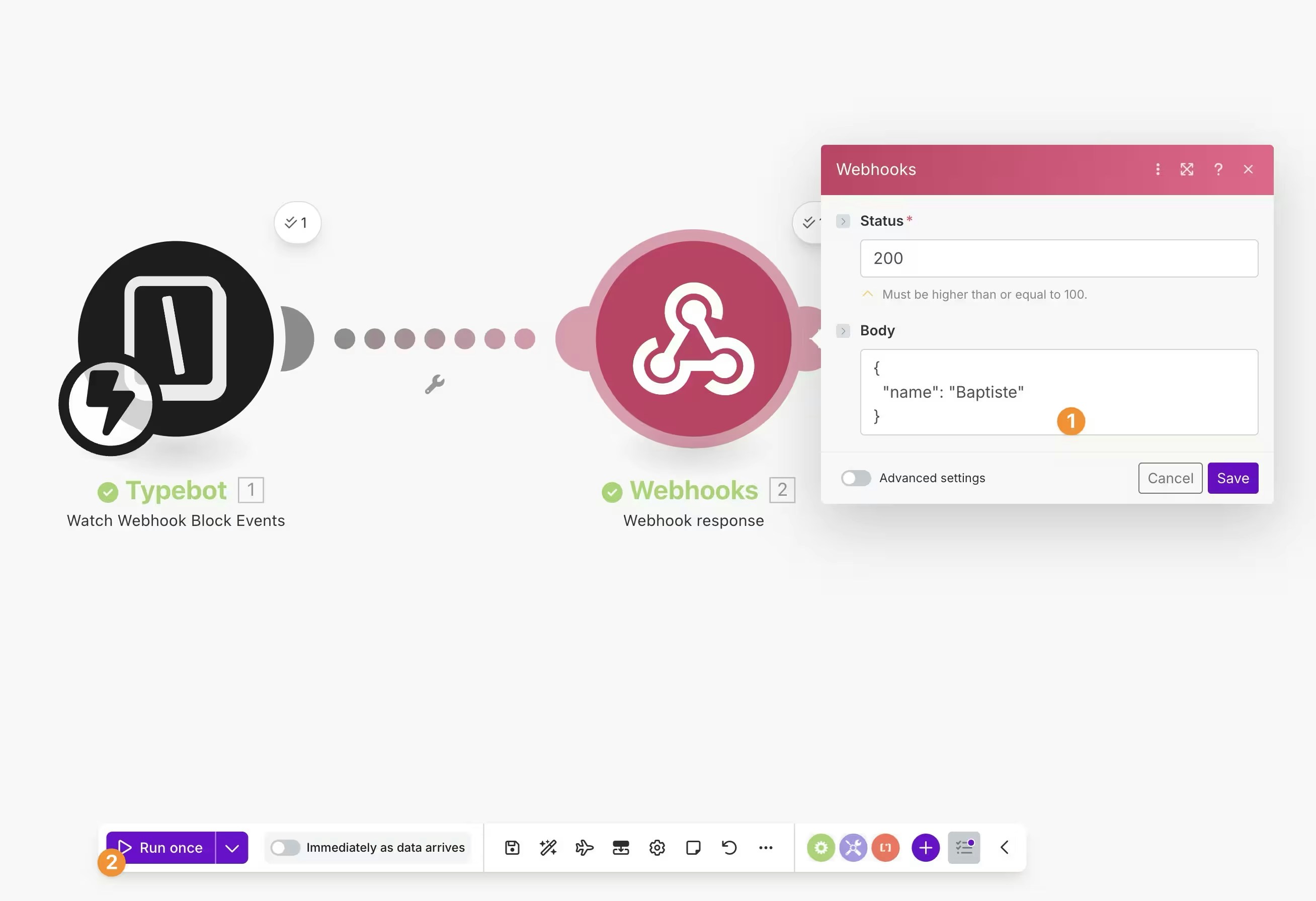
You can return data from Make.com by adding a "Webhook response" module at the end of your scenario, on this node you can set the body of the response with whatever Make.com values you want.
Once you are ready to try out the webhook, hit the `Run once` button. This will make the scenario to wait for a request to be made to the webhook URL.
2. Follow the instructions on Make.com to create and enable your scenario.
3. Run the scenario on Make.com.
4. Go back to Typebot, click on your Make.com block and click on "Test the request".
5. The scenario will be triggered on Make.com.
## Return data from Make.com
You can return data from Make.com by adding a "Webhook response" module at the end of your scenario, on this node you can set the body of the response with whatever Make.com values you want.
Once you are ready to try out the webhook, hit the `Run once` button. This will make the scenario to wait for a request to be made to the webhook URL.
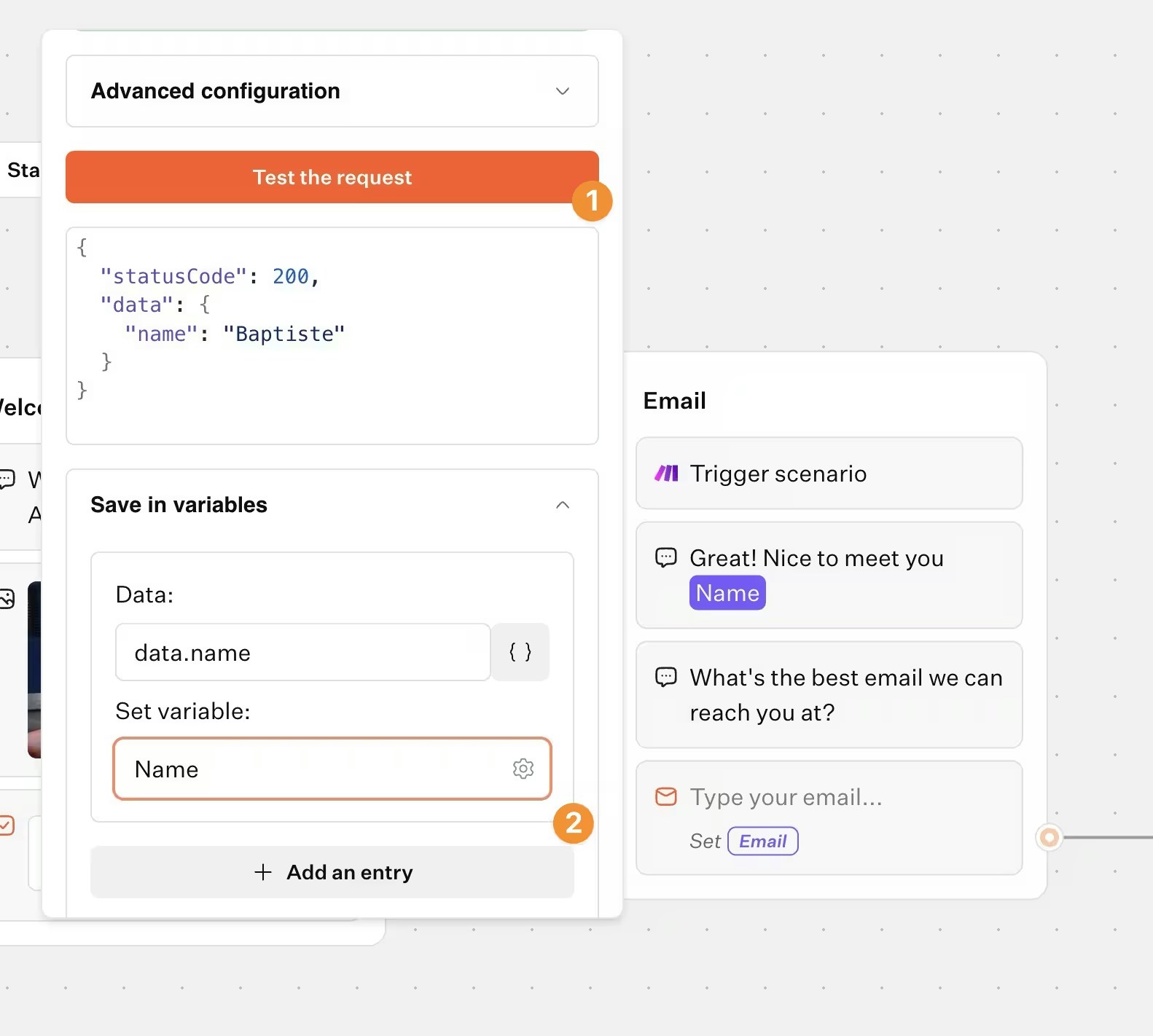
 At this point, head over to Typebot and hit the `Test the request` button. It will execute the Make.com scenario and you should see the response from Make.com.
Now you can map this data to variables in Typebot.
At this point, head over to Typebot and hit the `Test the request` button. It will execute the Make.com scenario and you should see the response from Make.com.
Now you can map this data to variables in Typebot.
 ## Video tutorial