> ## Documentation Index
> Fetch the complete documentation index at: https://docs.typebot.com/llms.txt
> Use this file to discover all available pages before exploring further.
# Chatwoot
The Chatwoot integration block allows you to open a Chatwoot widget to allow your user to directly talk to a human. It allows you to add a Live Chat layer on your typebot.
## Requirements
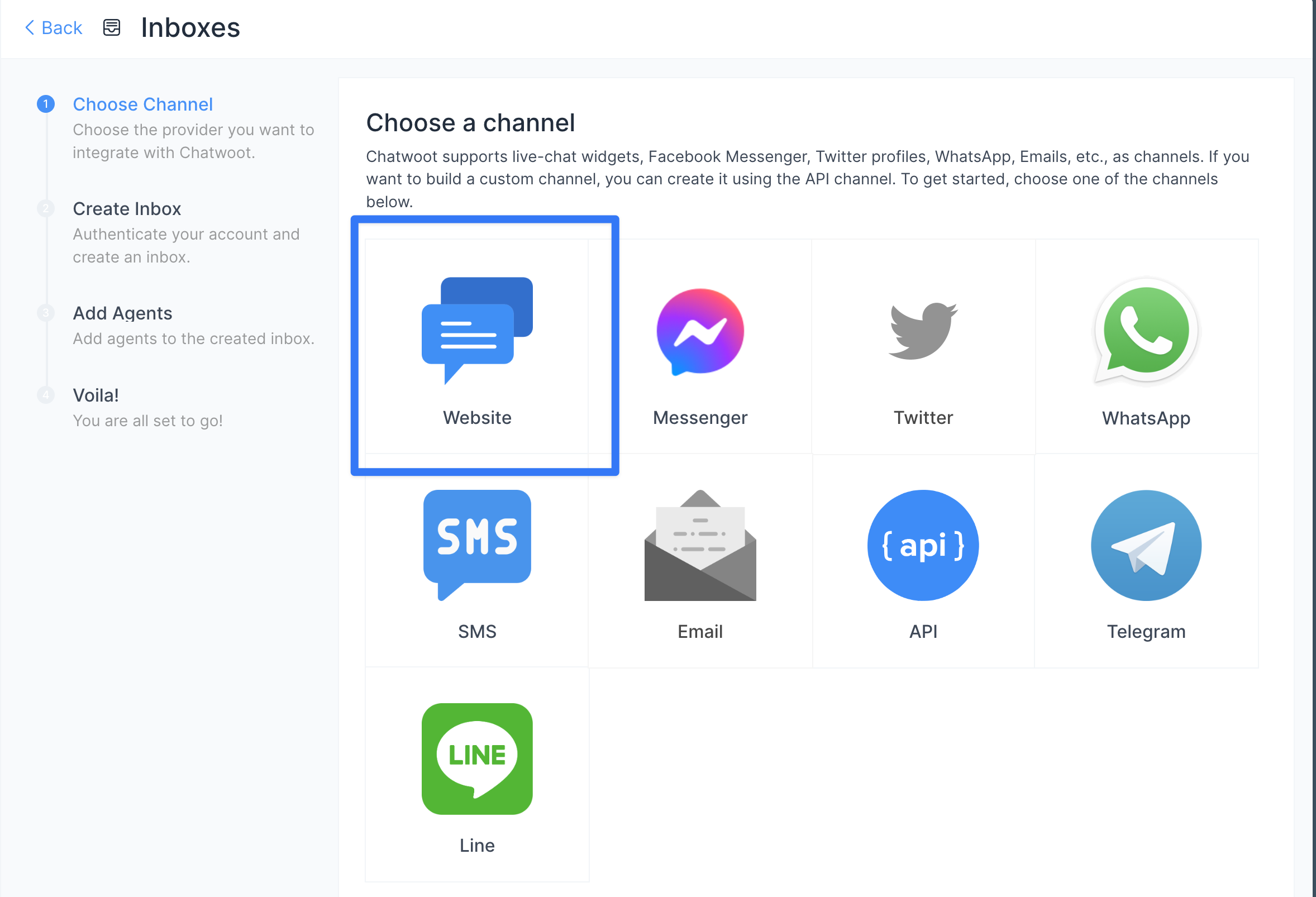
For this integration, you need a Chatwoot account and create a "Website" inbox:
 ## Setup
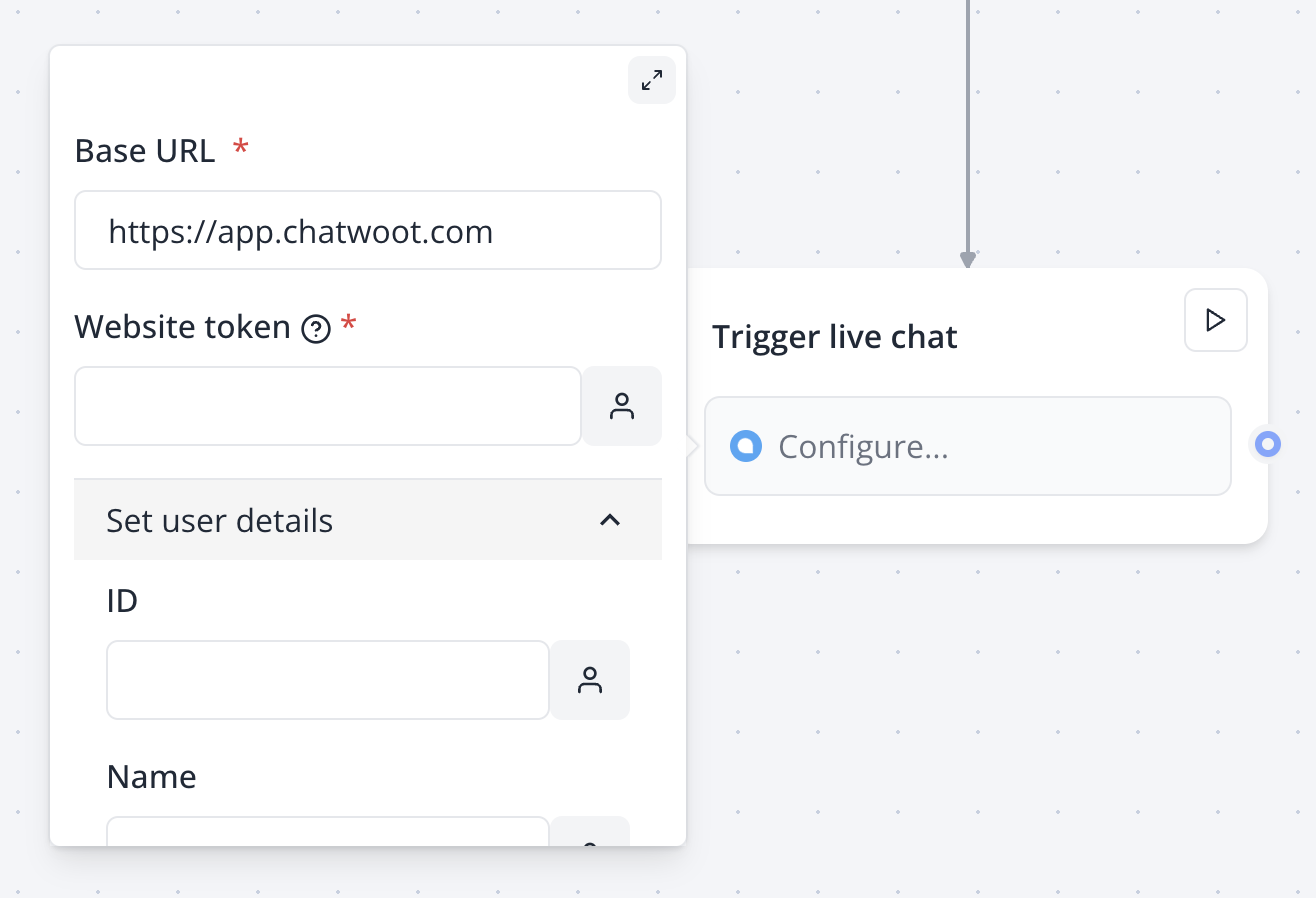
Insert a Chatwoot block where you want to trigger the widget:
## Setup
Insert a Chatwoot block where you want to trigger the widget:
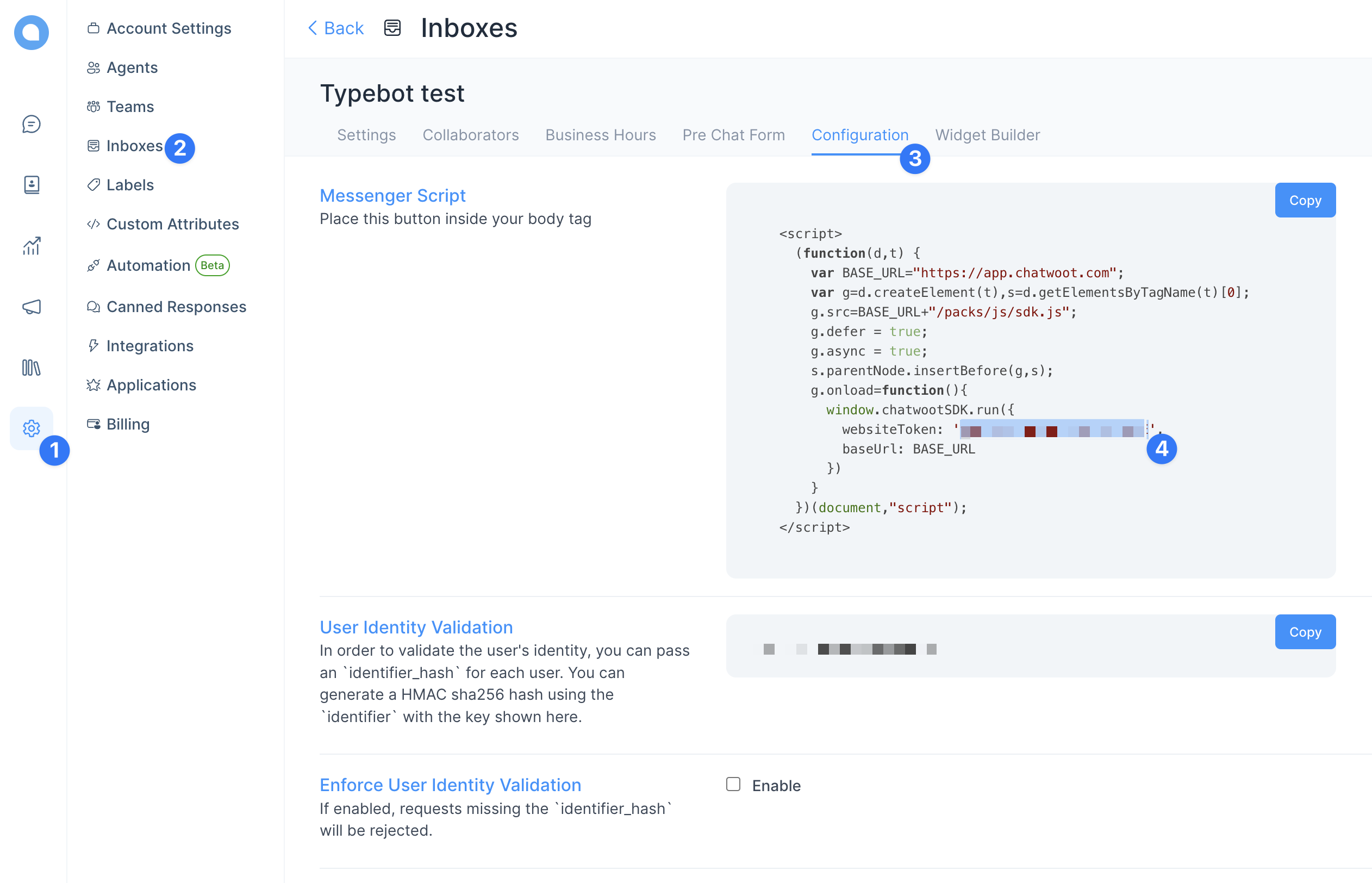
 To find your website token, head over to Chatwoot in your Inbox settings:
 You can prefill user information by adding collected variables to the "Set user details" inputs.
For example, if you set the "Email" input to "[john@gmail.com](mailto:john@gmail.com)" then Chatwoot will automatically associate this email to the current user.
## Custom attributes
You can add these custom attributes that Typebot will automatically fill in for you:
### Result URL
You can link the current result URL to the Chatwoot conversation by creating this custom attribute:
You can prefill user information by adding collected variables to the "Set user details" inputs.
For example, if you set the "Email" input to "[john@gmail.com](mailto:john@gmail.com)" then Chatwoot will automatically associate this email to the current user.
## Custom attributes
You can add these custom attributes that Typebot will automatically fill in for you:
### Result URL
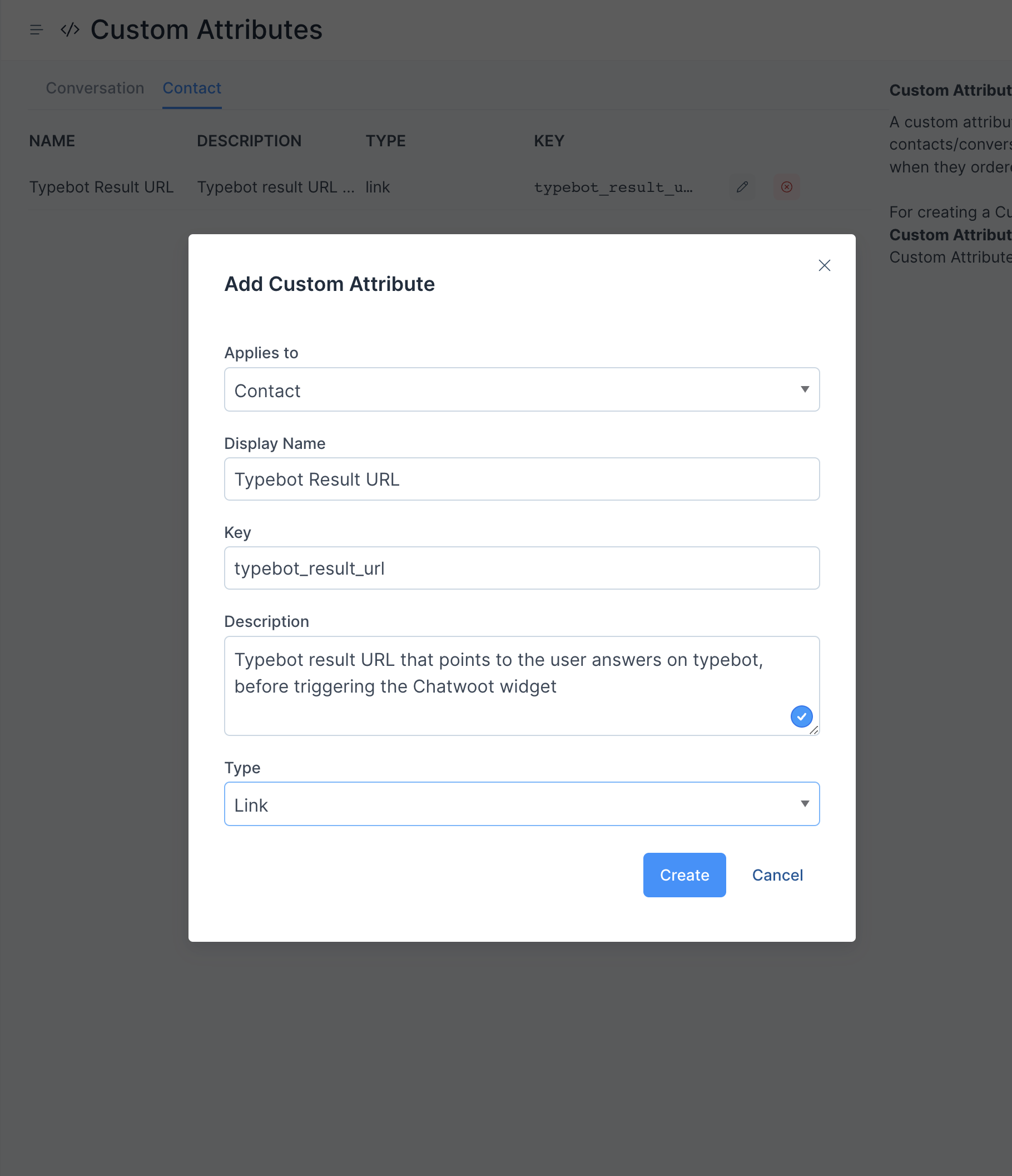
You can link the current result URL to the Chatwoot conversation by creating this custom attribute:
 ### Set user behavior
If you are prefilling user information, by default, if you leave the ID input empty, it will set the Chatwoot user ID as either the `Email` or the Result ID.
Setting the `Email` as the ID allows us to avoid having contact not properly merged together ([https://github.com/chatwoot/chatwoot/issues/2811](https://github.com/chatwoot/chatwoot/issues/2811))
### Set user behavior
If you are prefilling user information, by default, if you leave the ID input empty, it will set the Chatwoot user ID as either the `Email` or the Result ID.
Setting the `Email` as the ID allows us to avoid having contact not properly merged together ([https://github.com/chatwoot/chatwoot/issues/2811](https://github.com/chatwoot/chatwoot/issues/2811))