> ## Documentation Index
> Fetch the complete documentation index at: https://docs.typebot.com/llms.txt
> Use this file to discover all available pages before exploring further.
# Text input
The Text input block allows you to ask your user for a text answer.
## Short text input
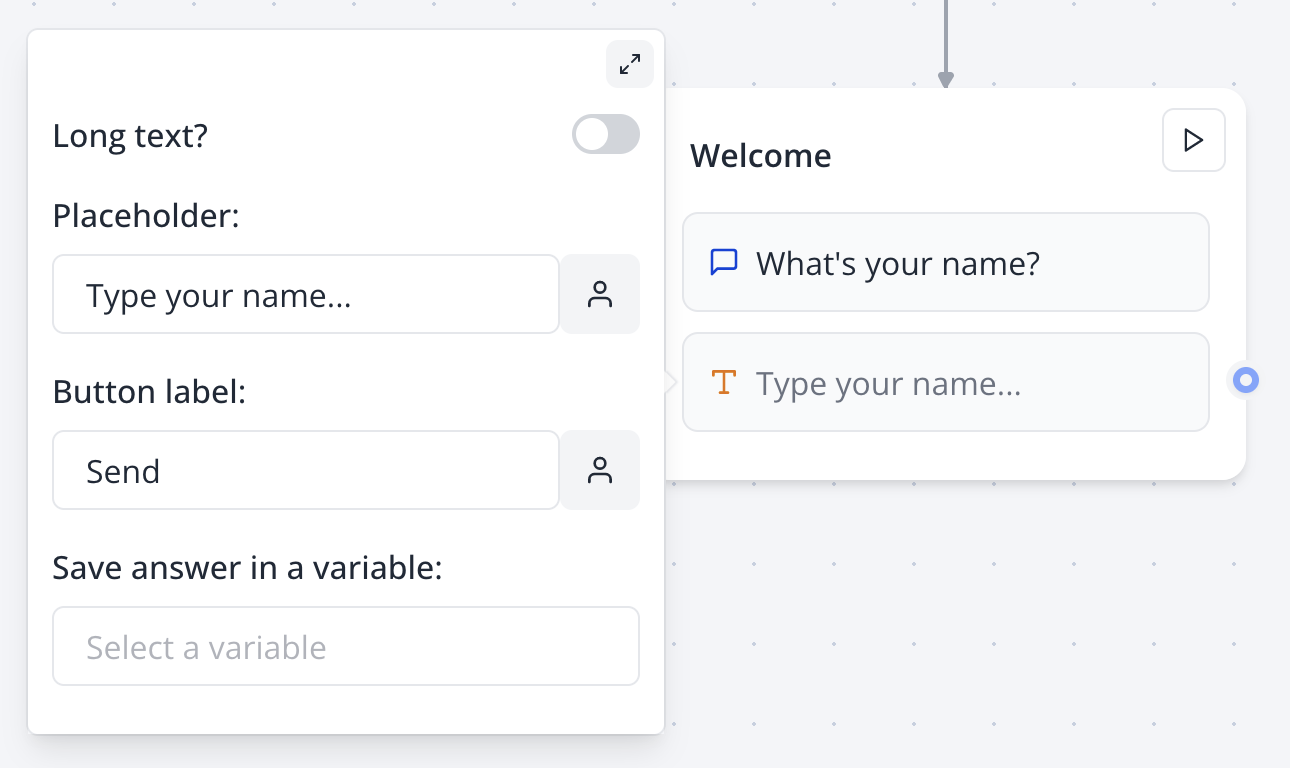
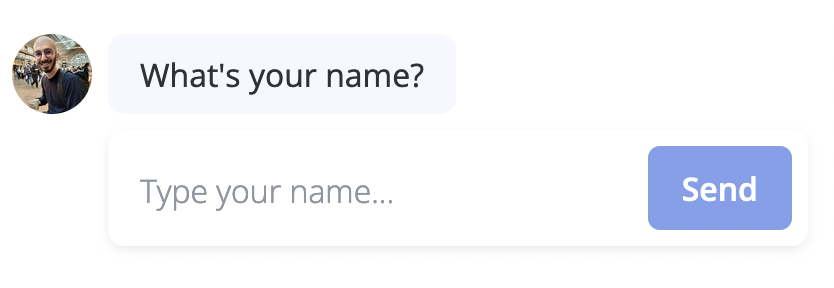
By default the text input is expecting a short answer:
 ## Long text input
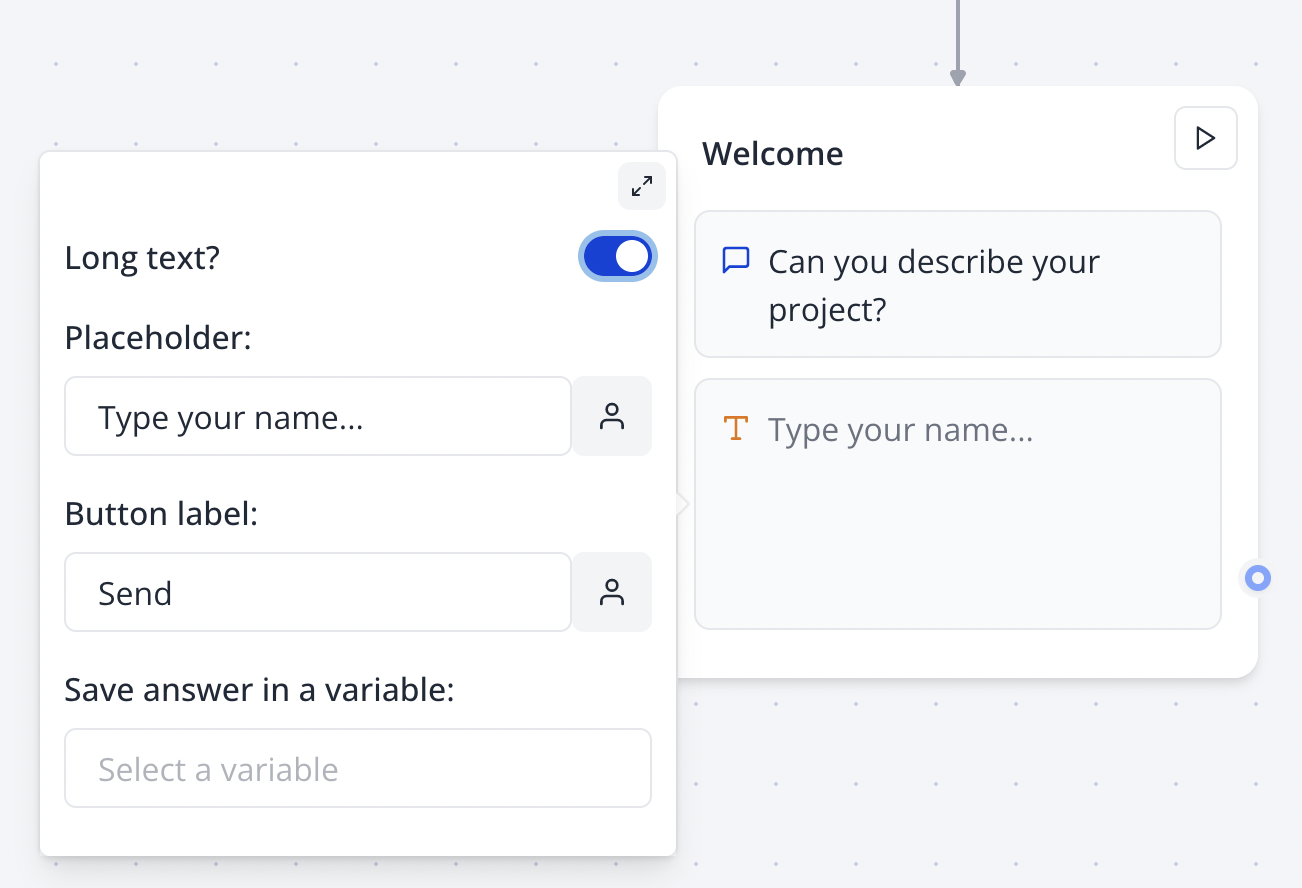
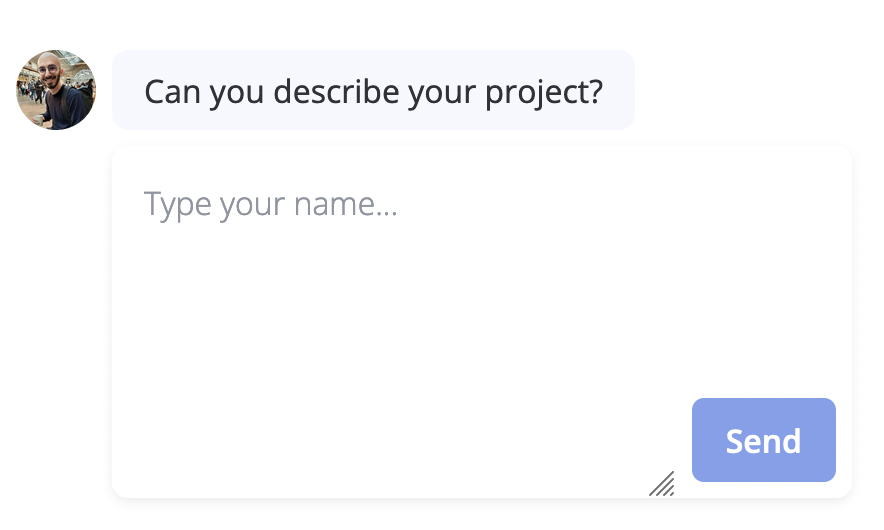
You can also ask your user for a longer text answer by enabling it in the input options:
## Long text input
You can also ask your user for a longer text answer by enabling it in the input options:
 ## Input mode
The input mode option allows you to specify the type of virtual keyboard that should be displayed on mobile devices. This provides a better user experience by showing the most appropriate keyboard for the expected input.
Available input modes:
* **text**: Shows a standard keyboard
* **decimal**: Shows a numeric keypad with decimal support
* **numeric**: Shows a numeric keypad for whole numbers
* **tel**: Shows a telephone keypad
* **search**: Shows a keyboard optimized for search inputs
* **email**: Shows a keyboard optimized for email addresses
* **url**: Shows a keyboard optimized for URL entry
Input mode is a hint to the browser and may not be supported on all devices or browsers. It's particularly useful for mobile devices.
For more information, see the [MDN documentation](https://developer.mozilla.org/docs/Web/HTML/Reference/Global_attributes/inputmode).
## Allow attachments
This option, when enabled, allows users to attach files to their message. This is useful when you want to ask for a document or a picture attached to the user messages.
The generated URL will be stored in the defined variable.
## Allow audio clips
This option, if enabled, displays a microphone button when the text input is empty. This allows users to record a voice message and send it to the bot.
If supported, the recorded file will be a WebM file. If not, it will be an MP4 file (i.e. Safari).
## Input mode
The input mode option allows you to specify the type of virtual keyboard that should be displayed on mobile devices. This provides a better user experience by showing the most appropriate keyboard for the expected input.
Available input modes:
* **text**: Shows a standard keyboard
* **decimal**: Shows a numeric keypad with decimal support
* **numeric**: Shows a numeric keypad for whole numbers
* **tel**: Shows a telephone keypad
* **search**: Shows a keyboard optimized for search inputs
* **email**: Shows a keyboard optimized for email addresses
* **url**: Shows a keyboard optimized for URL entry
Input mode is a hint to the browser and may not be supported on all devices or browsers. It's particularly useful for mobile devices.
For more information, see the [MDN documentation](https://developer.mozilla.org/docs/Web/HTML/Reference/Global_attributes/inputmode).
## Allow attachments
This option, when enabled, allows users to attach files to their message. This is useful when you want to ask for a document or a picture attached to the user messages.
The generated URL will be stored in the defined variable.
## Allow audio clips
This option, if enabled, displays a microphone button when the text input is empty. This allows users to record a voice message and send it to the bot.
If supported, the recorded file will be a WebM file. If not, it will be an MP4 file (i.e. Safari).