> ## Documentation Index
> Fetch the complete documentation index at: https://docs.typebot.com/llms.txt
> Use this file to discover all available pages before exploring further.
# Payment
The Payment input block allows you to collect payment. You first need to add your Stripe:
## Connect Stripe account
After clicking on `Select an account > Connect new`, a configuration popup appears:
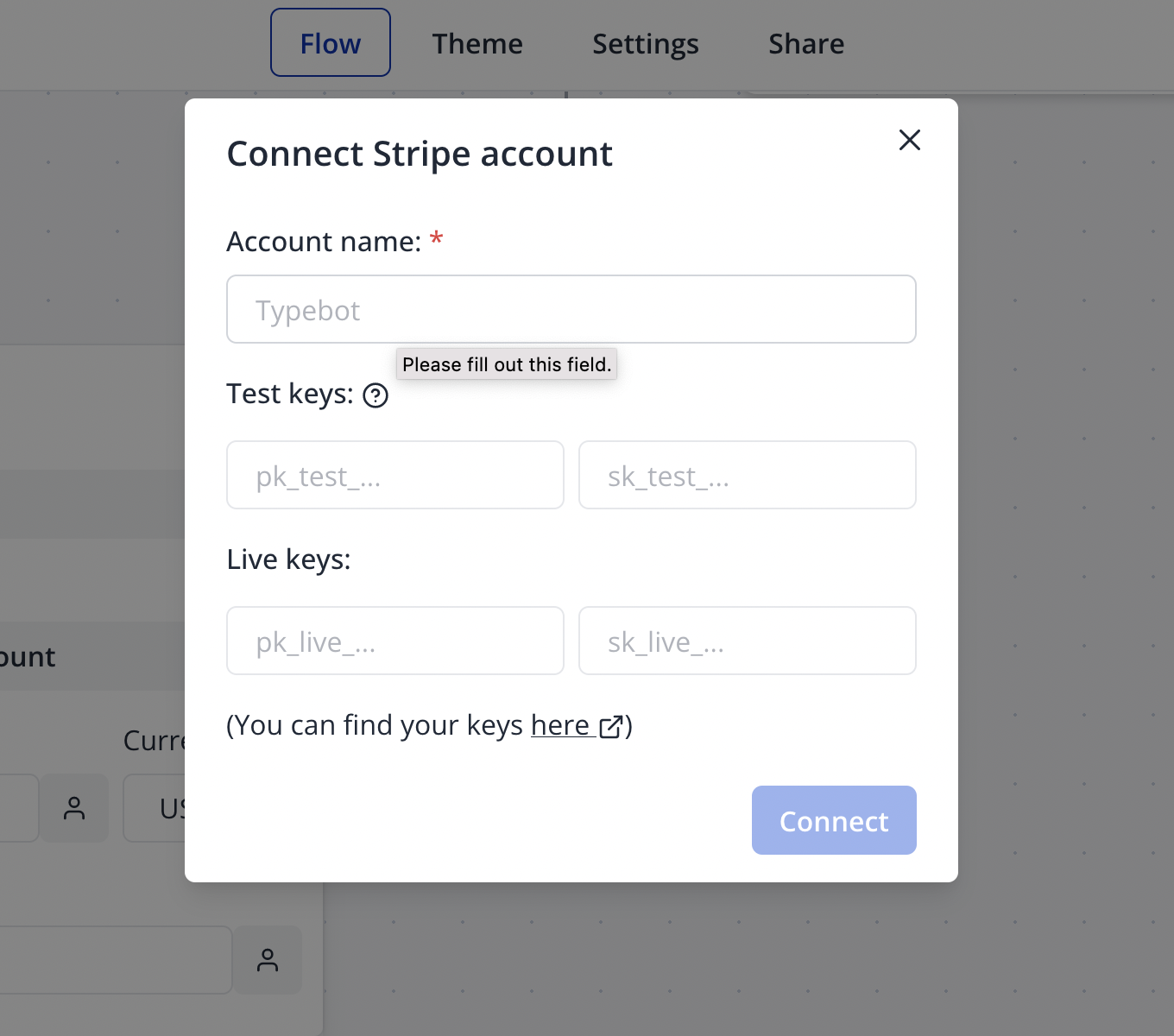 * Account name could be anything you'd like it's not something that has to come from Stripe.
* Test keys can be found here: [https://dashboard.stripe.com/test/apikeys](https://dashboard.stripe.com/test/apikeys)
* Live keys can be found here: [https://dashboard.stripe.com/apikeys](https://dashboard.stripe.com/apikeys)
Test keys will be used in the preview for testing purposes. Live keys will be used in the published bot.
If you'd still like to still use the test keys in the published bot you just need to also fill in the test keys into the live keys inputs.
*If you would like to simulate a successful payment, use test cards from the following list in Stripe -> [https://docs.stripe.com/testing?testing-method=card-numbers#cards](https://docs.stripe.com/testing?testing-method=card-numbers#cards)*
## Input configuration
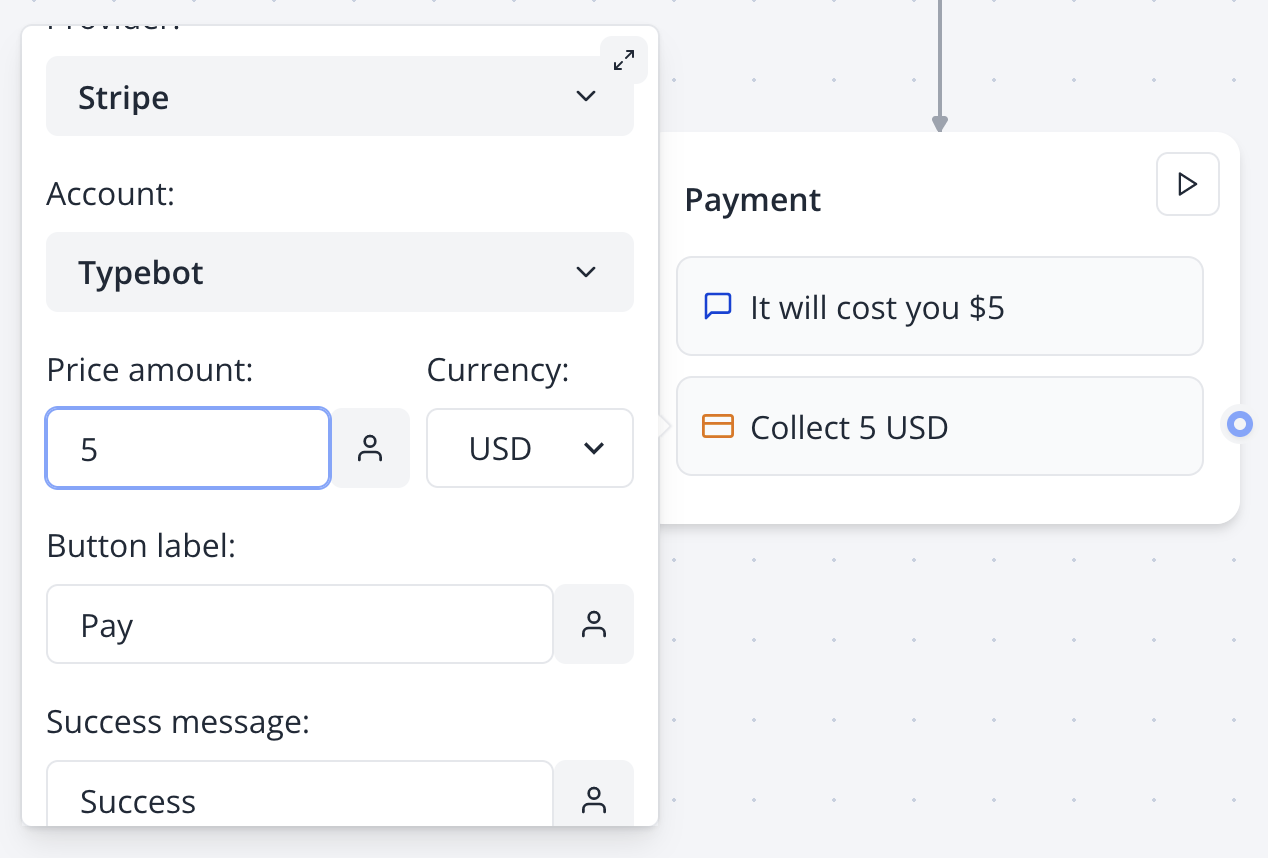
Once you have a Stripe account, you can select it and configure your input:
* Account name could be anything you'd like it's not something that has to come from Stripe.
* Test keys can be found here: [https://dashboard.stripe.com/test/apikeys](https://dashboard.stripe.com/test/apikeys)
* Live keys can be found here: [https://dashboard.stripe.com/apikeys](https://dashboard.stripe.com/apikeys)
Test keys will be used in the preview for testing purposes. Live keys will be used in the published bot.
If you'd still like to still use the test keys in the published bot you just need to also fill in the test keys into the live keys inputs.
*If you would like to simulate a successful payment, use test cards from the following list in Stripe -> [https://docs.stripe.com/testing?testing-method=card-numbers#cards](https://docs.stripe.com/testing?testing-method=card-numbers#cards)*
## Input configuration
Once you have a Stripe account, you can select it and configure your input:
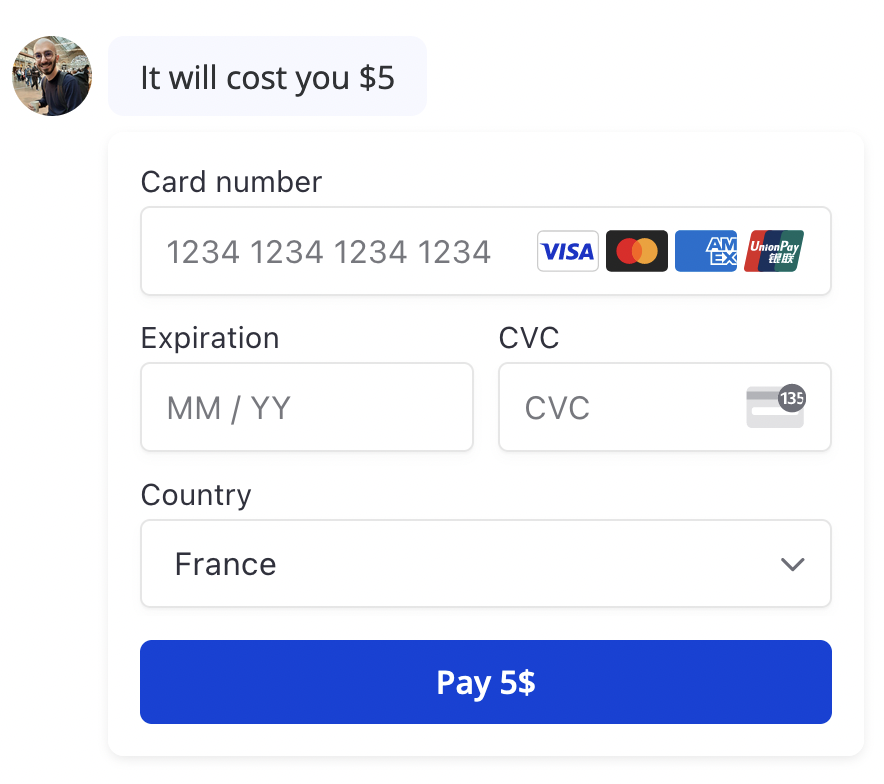 Make sure to enable any payment method you'd like to appear in your Stripe dashboard at this URL: [https://dashboard.stripe.com/settings/payment\_methods](https://dashboard.stripe.com/settings/payment_methods).
This is where you can enable Cards, Apple Pay, Google Pay, Alipay, WeChat Pay etc.
Make sure to enable any payment method you'd like to appear in your Stripe dashboard at this URL: [https://dashboard.stripe.com/settings/payment\_methods](https://dashboard.stripe.com/settings/payment_methods).
This is where you can enable Cards, Apple Pay, Google Pay, Alipay, WeChat Pay etc.