> ## Documentation Index
> Fetch the complete documentation index at: https://docs.typebot.com/llms.txt
> Use this file to discover all available pages before exploring further.
# Cards
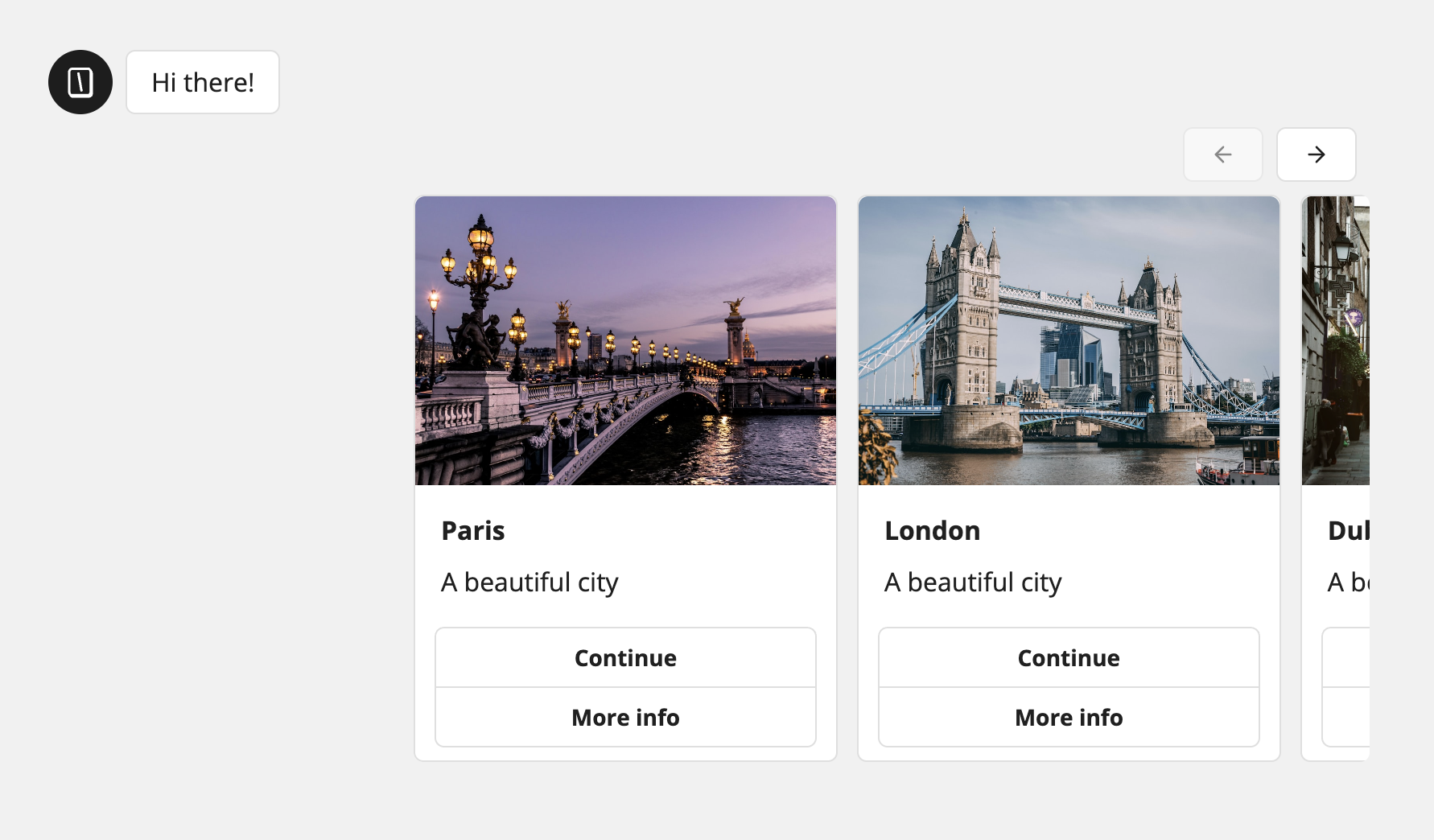
The Cards input block allows you to display a list of cards in a carousel.
A card can contain an image, a title, a description and several buttons.
 ## Display cards from variables
To display cards dynamically from variables. Make sure you have list variables. For example:
* `{{Images}}` => `["https://example.com/image1.png", "https://example.com/image2.png", "https://example.com/image3.png"]`
* `{{Titles}}` => `["Card 1", "Card 2", "Card 3"]`
* `{{Descriptions}}` => `["Description 1", "Description 2", "Description 3"]`
Simply add those variables to a single card in the flow editor and the 3 cards will be displayed in the bot.
## Save answer in variables
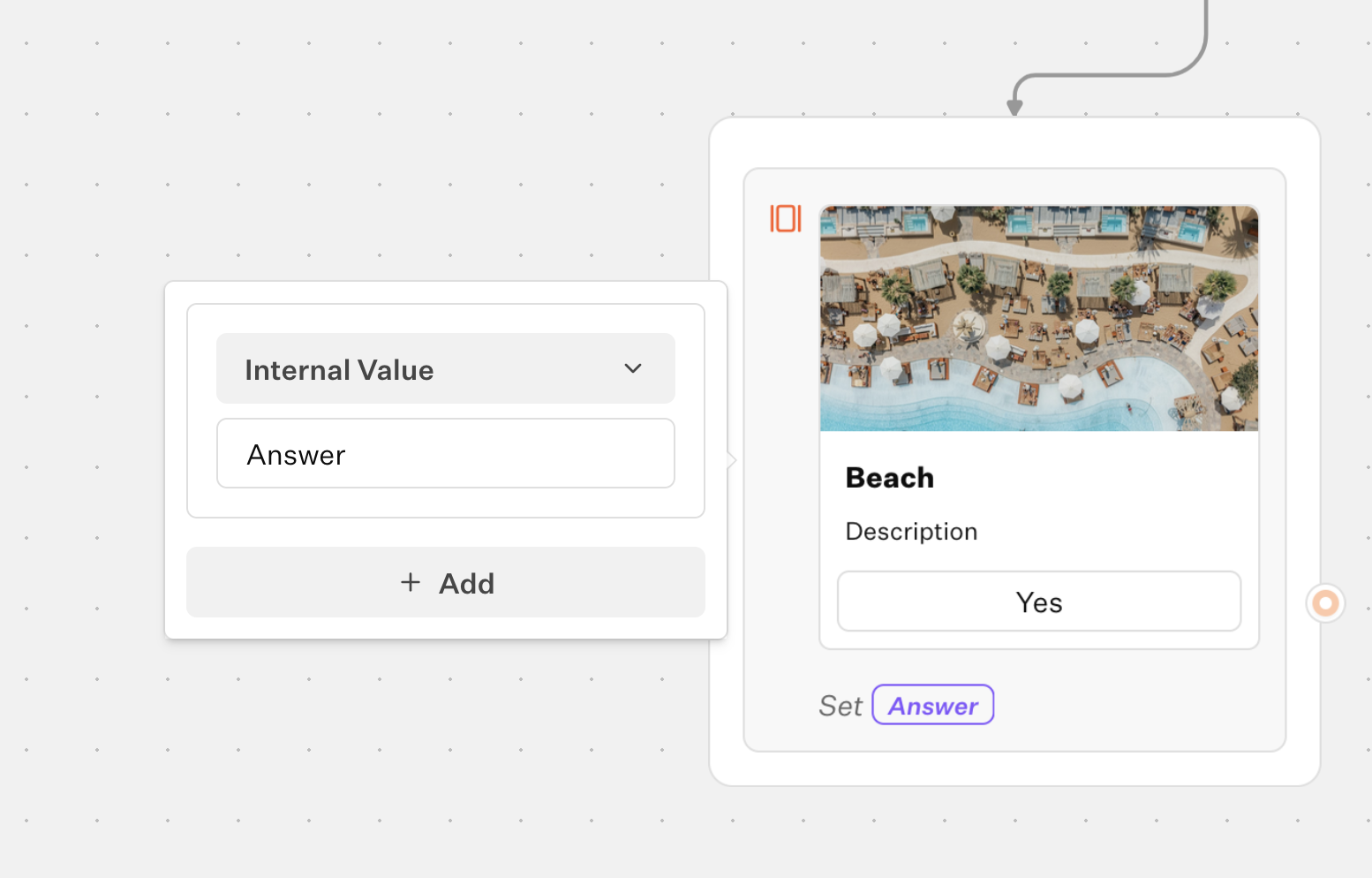
You can store parts of the selected card into variables. Open the Cards block settings and add a mapping, then choose what to extract and which variable to save it to. Add multiple rows if you want to store several fields.
Fields you can save:
* **Image URL**: the URL of the selected card image.
* **Title**: the selected card title.
* **Description**: the selected card description.
* **Button**: the label of the button the user clicked on the selected card.
* **Internal Value**: a hidden value defined per card, ideal for stable identifiers (IDs, slugs). Configure it in a card’s settings under "Internal value".
## Display cards from variables
To display cards dynamically from variables. Make sure you have list variables. For example:
* `{{Images}}` => `["https://example.com/image1.png", "https://example.com/image2.png", "https://example.com/image3.png"]`
* `{{Titles}}` => `["Card 1", "Card 2", "Card 3"]`
* `{{Descriptions}}` => `["Description 1", "Description 2", "Description 3"]`
Simply add those variables to a single card in the flow editor and the 3 cards will be displayed in the bot.
## Save answer in variables
You can store parts of the selected card into variables. Open the Cards block settings and add a mapping, then choose what to extract and which variable to save it to. Add multiple rows if you want to store several fields.
Fields you can save:
* **Image URL**: the URL of the selected card image.
* **Title**: the selected card title.
* **Description**: the selected card description.
* **Button**: the label of the button the user clicked on the selected card.
* **Internal Value**: a hidden value defined per card, ideal for stable identifiers (IDs, slugs). Configure it in a card’s settings under "Internal value".