> ## Documentation Index
> Fetch the complete documentation index at: https://docs.typebot.com/llms.txt
> Use this file to discover all available pages before exploring further.

# Text

The Text bubble block allows you to display a simple text bubble to your user. They can be chained and it will create a smooth animation:
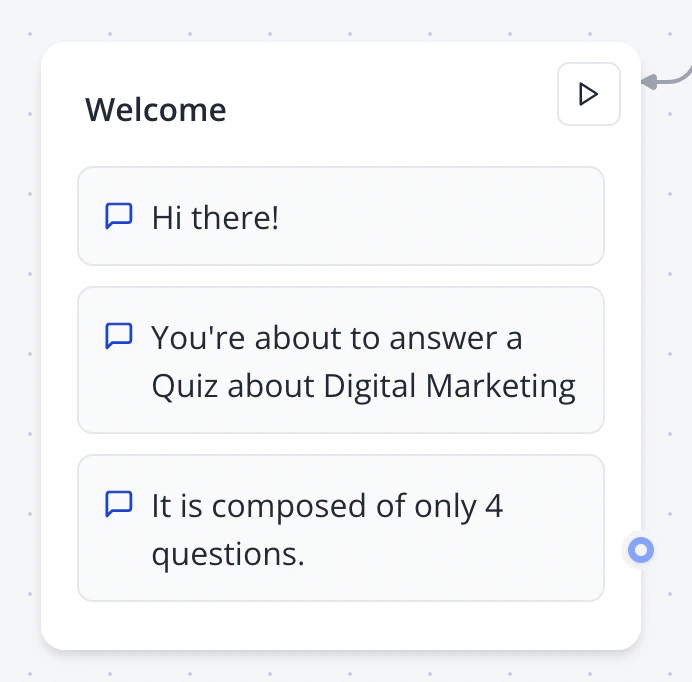
<Tabs>
  <Tab title="Flow">
    <Frame style={{ maxWidth: '400px' }}>
      <img src="https://mintcdn.com/typebot/_A9p16JCEDI2EkLF/images/blocks/bubbles/3-text-bubbles.png?fit=max&auto=format&n=_A9p16JCEDI2EkLF&q=85&s=53a81f37897d268ad7d0d96c18d0a9a5" alt="Text bubbles" className="rounded-lg" width="692" height="682" data-path="images/blocks/bubbles/3-text-bubbles.png" />
    </Frame>
  </Tab>

  <Tab title="Bot">
    <video controls autoPlay className="rounded-lg" src="https://mintcdn.com/typebot/_A9p16JCEDI2EkLF/images/blocks/bubbles/3-text-bubbles-chat.mp4?fit=max&auto=format&n=_A9p16JCEDI2EkLF&q=85&s=9b24995fcb19d93eae42f51444c377af" data-path="images/blocks/bubbles/3-text-bubbles-chat.mp4" />
  </Tab>
</Tabs>

## Insert a link

You can insert a link in your text bubbles using the link icon in the editor:
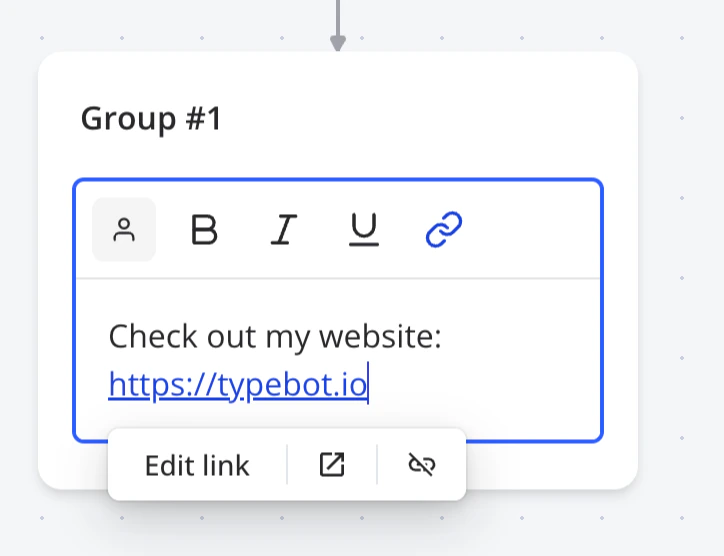
<Frame style={{ maxWidth: '400px' }}>
  <img src="https://mintcdn.com/typebot/_A9p16JCEDI2EkLF/images/blocks/bubbles/text-link.png?fit=max&auto=format&n=_A9p16JCEDI2EkLF&q=85&s=67942e9c7f0a9a8a939e39b2ae499d78" alt="Text link icon" width="724" height="556" data-path="images/blocks/bubbles/text-link.png" />
</Frame>

You can insert any links starting with `http:`, `https:`, `mailto:`, `tel:` or `sms:`. It can also be a variable.
