> ## Documentation Index
> Fetch the complete documentation index at: https://docs.typebot.com/llms.txt
> Use this file to discover all available pages before exploring further.
# WhatsApp
## Test
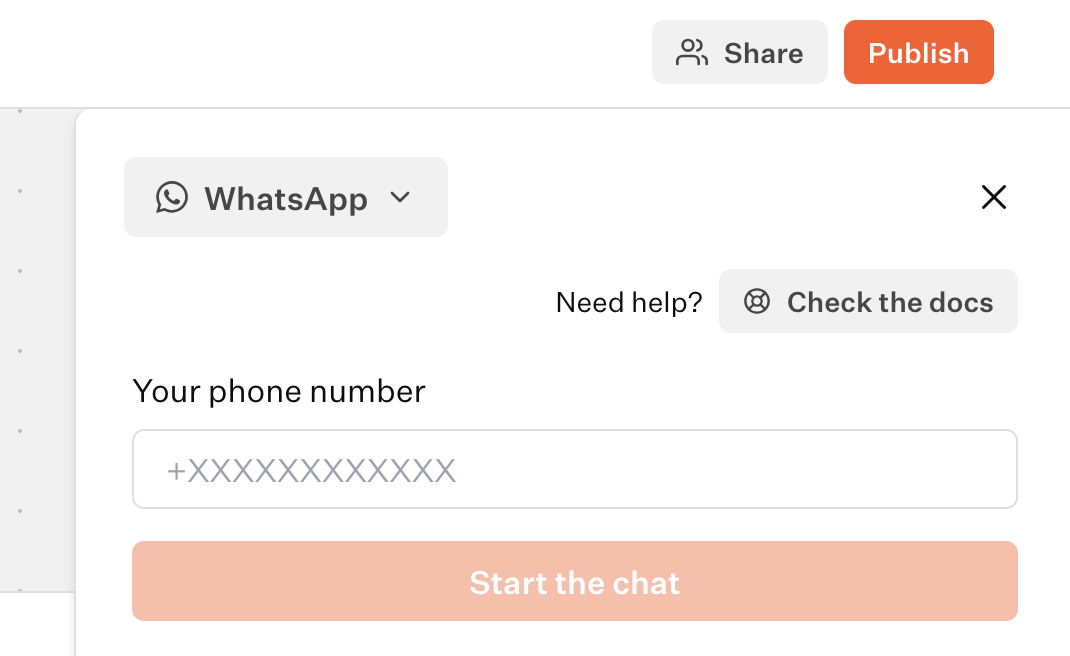
You can preview and test your bot by clicking on the `Test` button in the editor and change the runtime to `WhatsApp`.
 ### Troubleshooting
This can be due to a mismatch between the WhatsApp number displayed in your WhatsApp application profile settings and the number you have typed in Typebot.
For example, some Brazilians have 2 numbers, 1 with 8 digits, the other with 9 digits. In Typebot, you need to type the number that is displayed in your WhatsApp application profile settings to make sure the bot works properly.
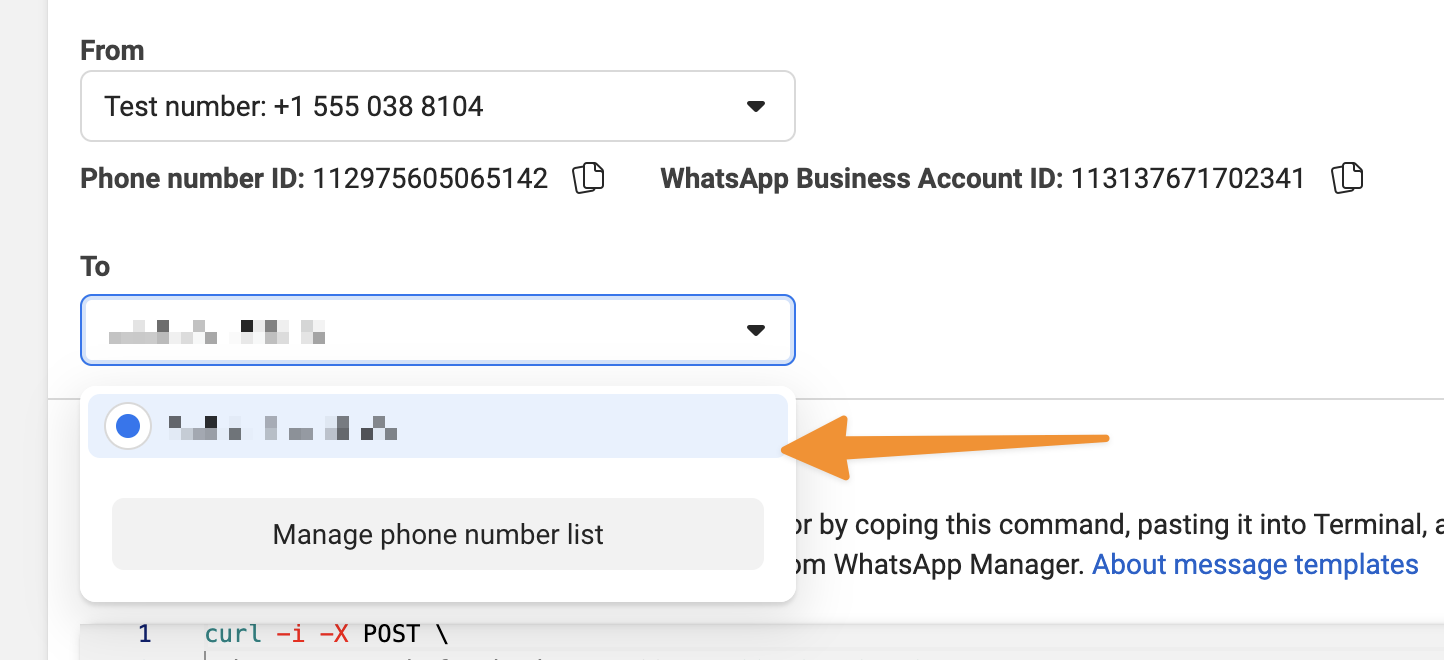
If you don't receive the preview initial message, it means that the phone number you are using is not valid or not accepted by WhatsApp.
* Make sure you can actually send a message to Typebot's business phone number (+33 7 56 95 36 64).
* Make sure that you have accepted WhatsApp's latest Terms of Service.
* Make sure you have the latest version of WhatsApp installed on your phone.
* Make sure to type the number that is displayed in your WhatsApp application profile settings to make sure you receive the preview initial message.
## Limitations
WhatsApp environment have some limitations that you need to keep in mind when building the bot:
* GIF and SVG image files are not supported. They won't be displayed.
* Only .mp4 videos are supported (See [Supported Media Types](https://developers.facebook.com/docs/whatsapp/cloud-api/reference/media#supported-media-types) for more info).
* WhatsApp only allows to display 3 buttons at a time. So we work around that by adding "..." messages to display more buttons.
* Cards input block can only display 3 buttons per card at a time.
* Buttons content can't be longer than 20 characters. If the content is longer, it will be truncated.
* Incompatible blocks, if present, they will be skipped:
* Payment input block
* Chatwoot block
* Script or Set Variable block with `Execute on client` option enabled
* Google Analytics block
* Meta Pixel blocks
* Cal.com block
## Contact information
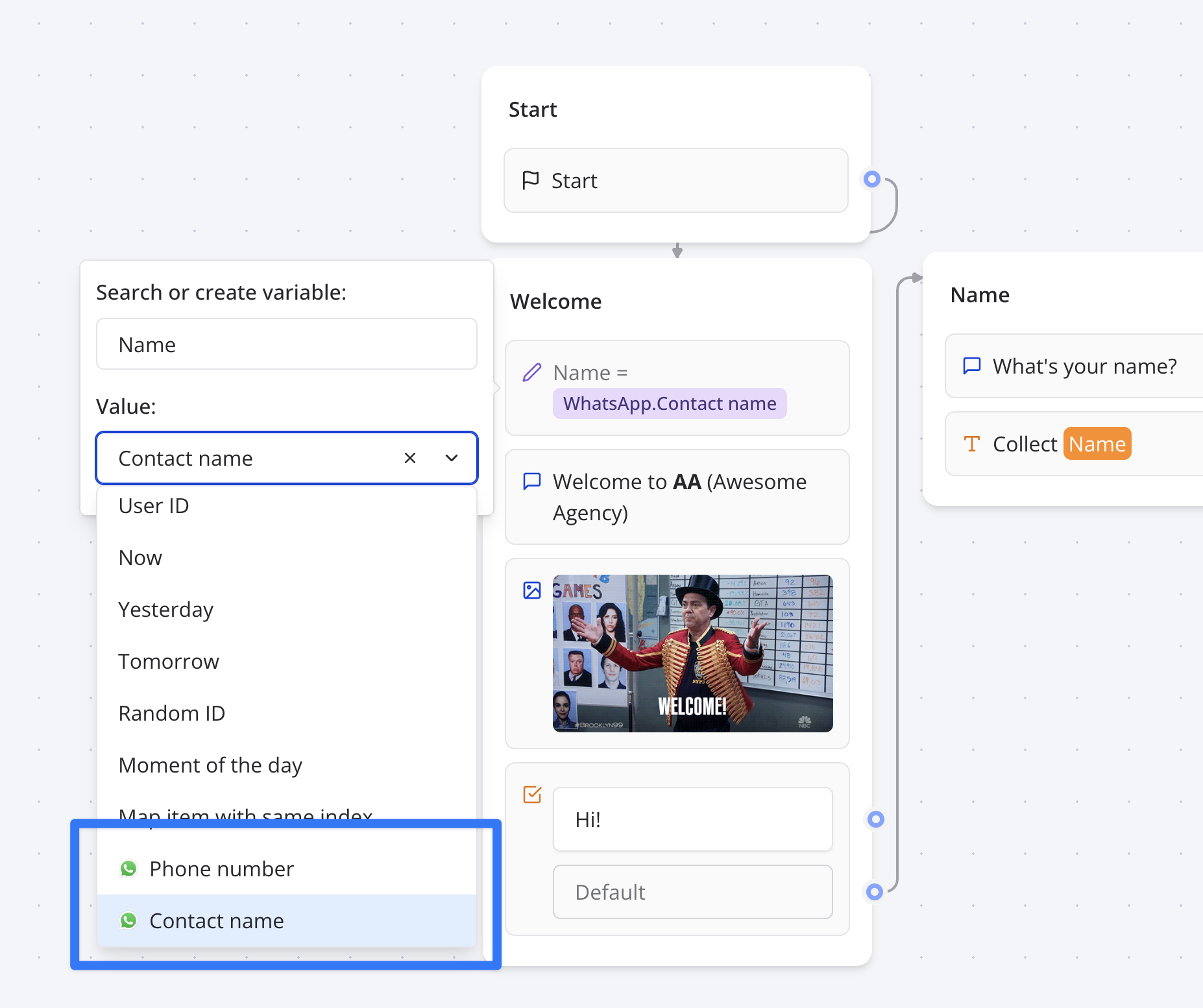
You can automatically assign contact name and phone number to a variable in your bot using a Set variable block with the dedicated system values:
### Troubleshooting
This can be due to a mismatch between the WhatsApp number displayed in your WhatsApp application profile settings and the number you have typed in Typebot.
For example, some Brazilians have 2 numbers, 1 with 8 digits, the other with 9 digits. In Typebot, you need to type the number that is displayed in your WhatsApp application profile settings to make sure the bot works properly.
If you don't receive the preview initial message, it means that the phone number you are using is not valid or not accepted by WhatsApp.
* Make sure you can actually send a message to Typebot's business phone number (+33 7 56 95 36 64).
* Make sure that you have accepted WhatsApp's latest Terms of Service.
* Make sure you have the latest version of WhatsApp installed on your phone.
* Make sure to type the number that is displayed in your WhatsApp application profile settings to make sure you receive the preview initial message.
## Limitations
WhatsApp environment have some limitations that you need to keep in mind when building the bot:
* GIF and SVG image files are not supported. They won't be displayed.
* Only .mp4 videos are supported (See [Supported Media Types](https://developers.facebook.com/docs/whatsapp/cloud-api/reference/media#supported-media-types) for more info).
* WhatsApp only allows to display 3 buttons at a time. So we work around that by adding "..." messages to display more buttons.
* Cards input block can only display 3 buttons per card at a time.
* Buttons content can't be longer than 20 characters. If the content is longer, it will be truncated.
* Incompatible blocks, if present, they will be skipped:
* Payment input block
* Chatwoot block
* Script or Set Variable block with `Execute on client` option enabled
* Google Analytics block
* Meta Pixel blocks
* Cal.com block
## Contact information
You can automatically assign contact name and phone number to a variable in your bot using a Set variable block with the dedicated system values:
 ## Deploy on your phone number
Head over to the Share tab of your bot and click on the WhatsApp button to get the integration instructions of your bot.
### Configuration
You can customize how your bot behaves on WhatsApp in the `Configure integration` section
## Deploy on your phone number
Head over to the Share tab of your bot and click on the WhatsApp button to get the integration instructions of your bot.
### Configuration
You can customize how your bot behaves on WhatsApp in the `Configure integration` section
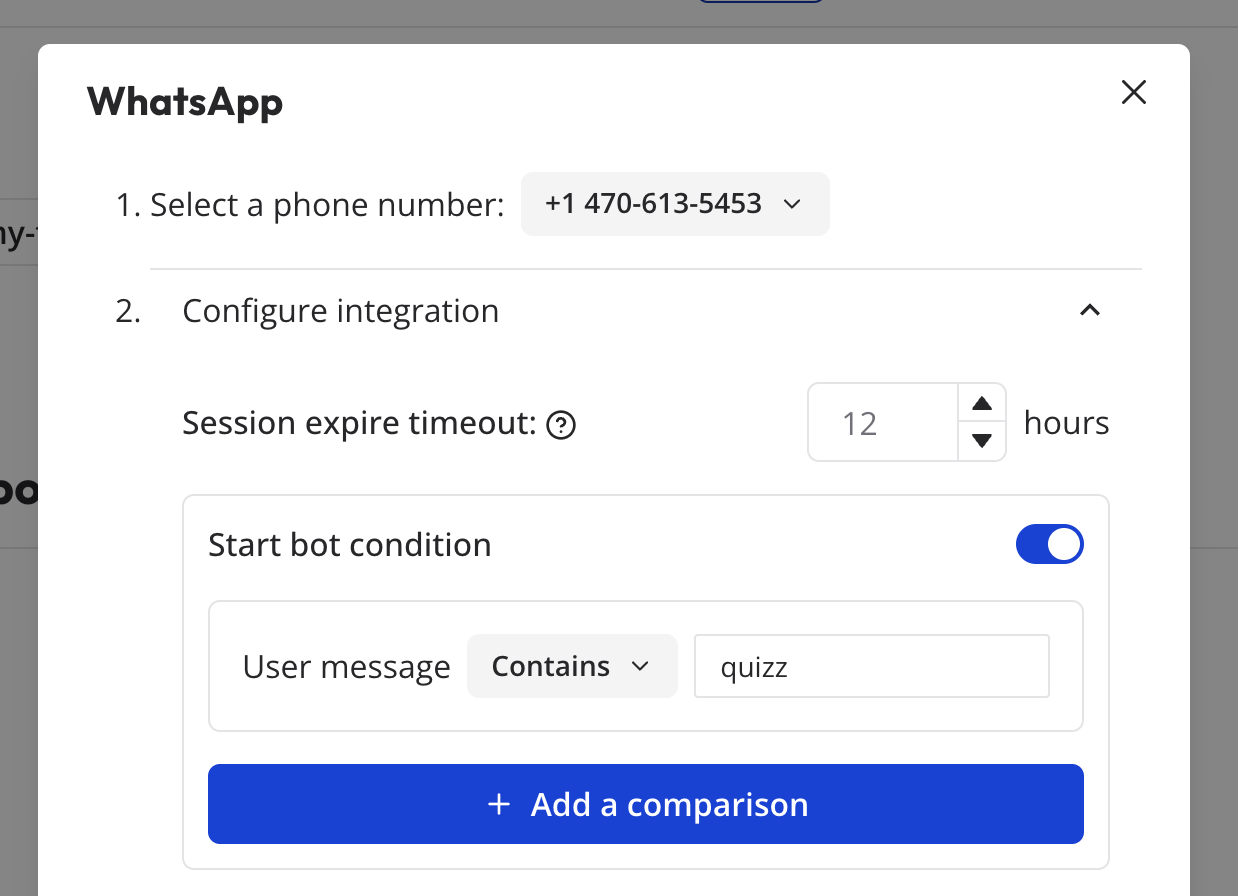 **Session expiration timeout**: A number from 0 to 48 which is the number of hours after which the session will expire. If the user doesn't interact with the bot for more than the timeout, the session will expire and if user sends a new message, it will start a new chat. The default is 4 hours.
**Start bot condition**: A condition that will be evaluated when a user starts a conversation with your bot. If the condition is not met, the bot will not be triggered.
## Collect position
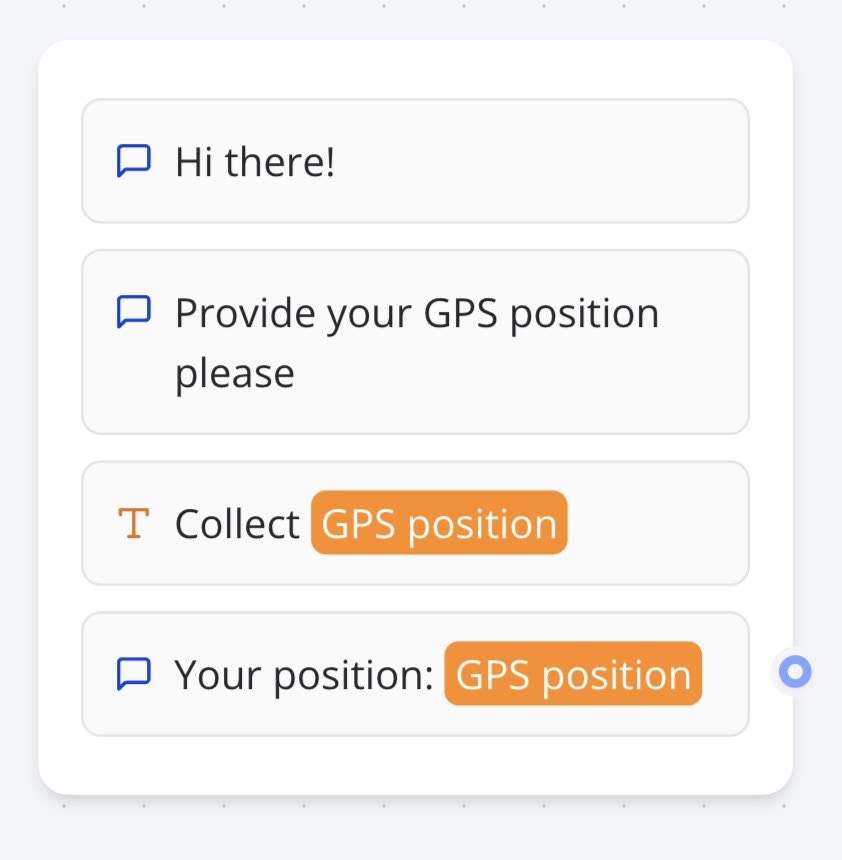
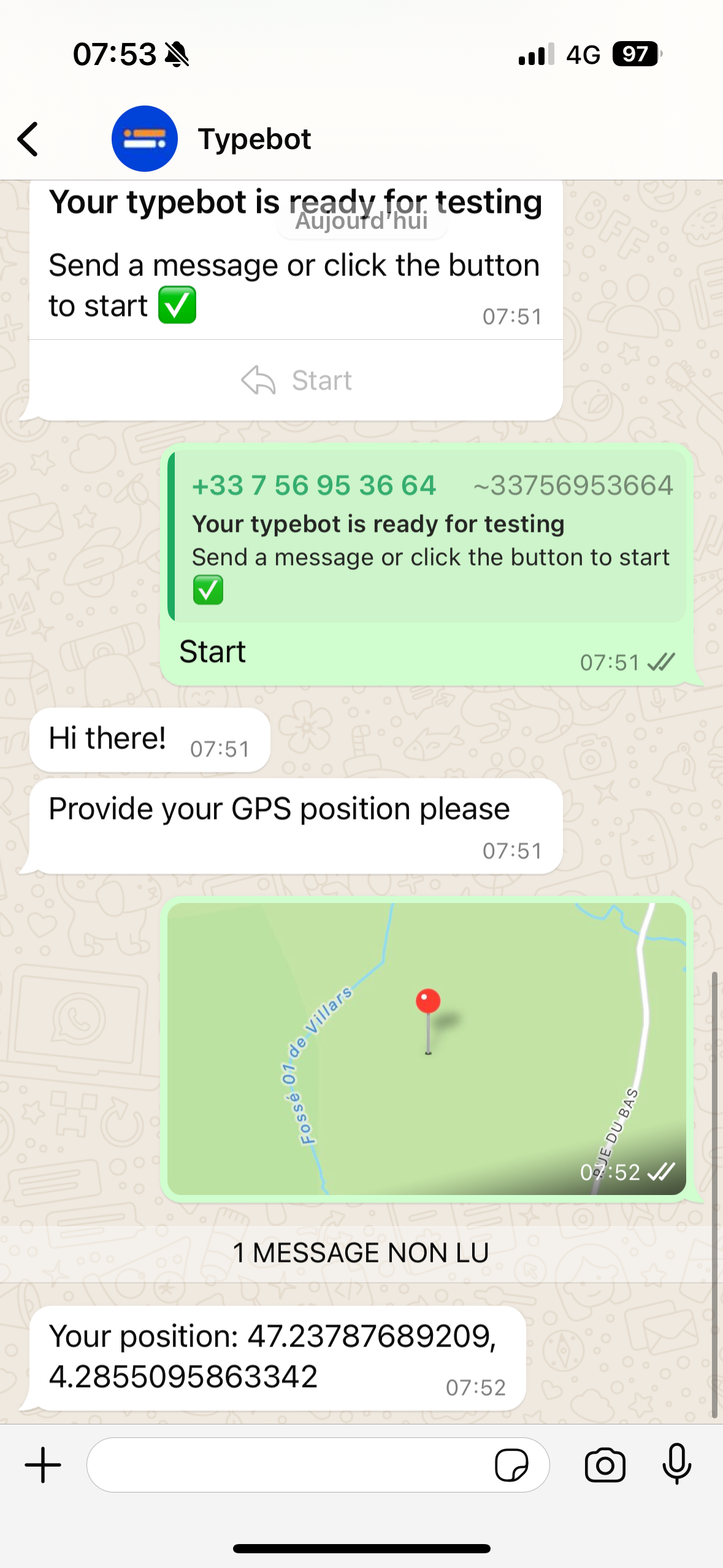
You can ask for the user's location with a basic [Text input block](../../editor/blocks/inputs/text). It will be saved as a variable with the latitude and longitude with the following format: `, `.
**Session expiration timeout**: A number from 0 to 48 which is the number of hours after which the session will expire. If the user doesn't interact with the bot for more than the timeout, the session will expire and if user sends a new message, it will start a new chat. The default is 4 hours.
**Start bot condition**: A condition that will be evaluated when a user starts a conversation with your bot. If the condition is not met, the bot will not be triggered.
## Collect position
You can ask for the user's location with a basic [Text input block](../../editor/blocks/inputs/text). It will be saved as a variable with the latitude and longitude with the following format: `, `.
 ## FAQ
You can integrate as many numbers as you'd like. Keep in mind that Typebot
does not provide those numbers. We work as a "Bring your own Meta
application" and we give you clear instructions on [how to set up your Meta
app](./create-meta-app).
Yes, you can. You will have to add a "Start bot condition" to each of your
bots to make sure that the right bot is triggered when a user starts a
conversation.
You integrate your typebots with your own WhatsApp Business Platform which
is the official service from Meta. At the moment, the first 1,000 Service
conversations each month are free. For more information, refer to{" "}
their documentation
## Troubleshooting
### After publishing the bot on my phone number, it doesn't reply back
It can happen that you configured your WhatsApp number, you send the first
message to try it out but it never replies back.
To troubleshoot this we suggest you to:
1. Make sure the bot works fine in [Test mode](#test)
2. Make sure the phone number you are using is not already used in WhatsApp Business app.
If it is, you won't be able to use the same number to use with Typebot. The process of associating a phone number to Typebot blocks that number from being used for a regular WhatsApp account. Even though we recommend to use a dedicated phone number number for Typebot, you can migrate your phone number registered with WhatsApp Business app by deleting your WhatsApp Business app account. It should unlock the number after 24 hours.
3. Delete the phone number configuration on Typebot and configure it again while making sure you read all the instructions thoroughly.
4. Make sure you don't have any Start conditions or that your first message is matching the condition
5. If using a test phone number, make sure the phone number you are using to send the first message is in the list of allowed numbers of that test phone number.
## FAQ
You can integrate as many numbers as you'd like. Keep in mind that Typebot
does not provide those numbers. We work as a "Bring your own Meta
application" and we give you clear instructions on [how to set up your Meta
app](./create-meta-app).
Yes, you can. You will have to add a "Start bot condition" to each of your
bots to make sure that the right bot is triggered when a user starts a
conversation.
You integrate your typebots with your own WhatsApp Business Platform which
is the official service from Meta. At the moment, the first 1,000 Service
conversations each month are free. For more information, refer to{" "}
their documentation
## Troubleshooting
### After publishing the bot on my phone number, it doesn't reply back
It can happen that you configured your WhatsApp number, you send the first
message to try it out but it never replies back.
To troubleshoot this we suggest you to:
1. Make sure the bot works fine in [Test mode](#test)
2. Make sure the phone number you are using is not already used in WhatsApp Business app.
If it is, you won't be able to use the same number to use with Typebot. The process of associating a phone number to Typebot blocks that number from being used for a regular WhatsApp account. Even though we recommend to use a dedicated phone number number for Typebot, you can migrate your phone number registered with WhatsApp Business app by deleting your WhatsApp Business app account. It should unlock the number after 24 hours.
3. Delete the phone number configuration on Typebot and configure it again while making sure you read all the instructions thoroughly.
4. Make sure you don't have any Start conditions or that your first message is matching the condition
5. If using a test phone number, make sure the phone number you are using to send the first message is in the list of allowed numbers of that test phone number.