> ## Documentation Index
> Fetch the complete documentation index at: https://docs.typebot.com/llms.txt
> Use this file to discover all available pages before exploring further.
# Overview
To get the appropriate instructions to deploy your typebot in your platform of choice, make sure to head over the `Share` tab of your bot and select the platform you want to deploy your typebot on.
You can choose to embed your typebot in 3 different ways.
## Standard
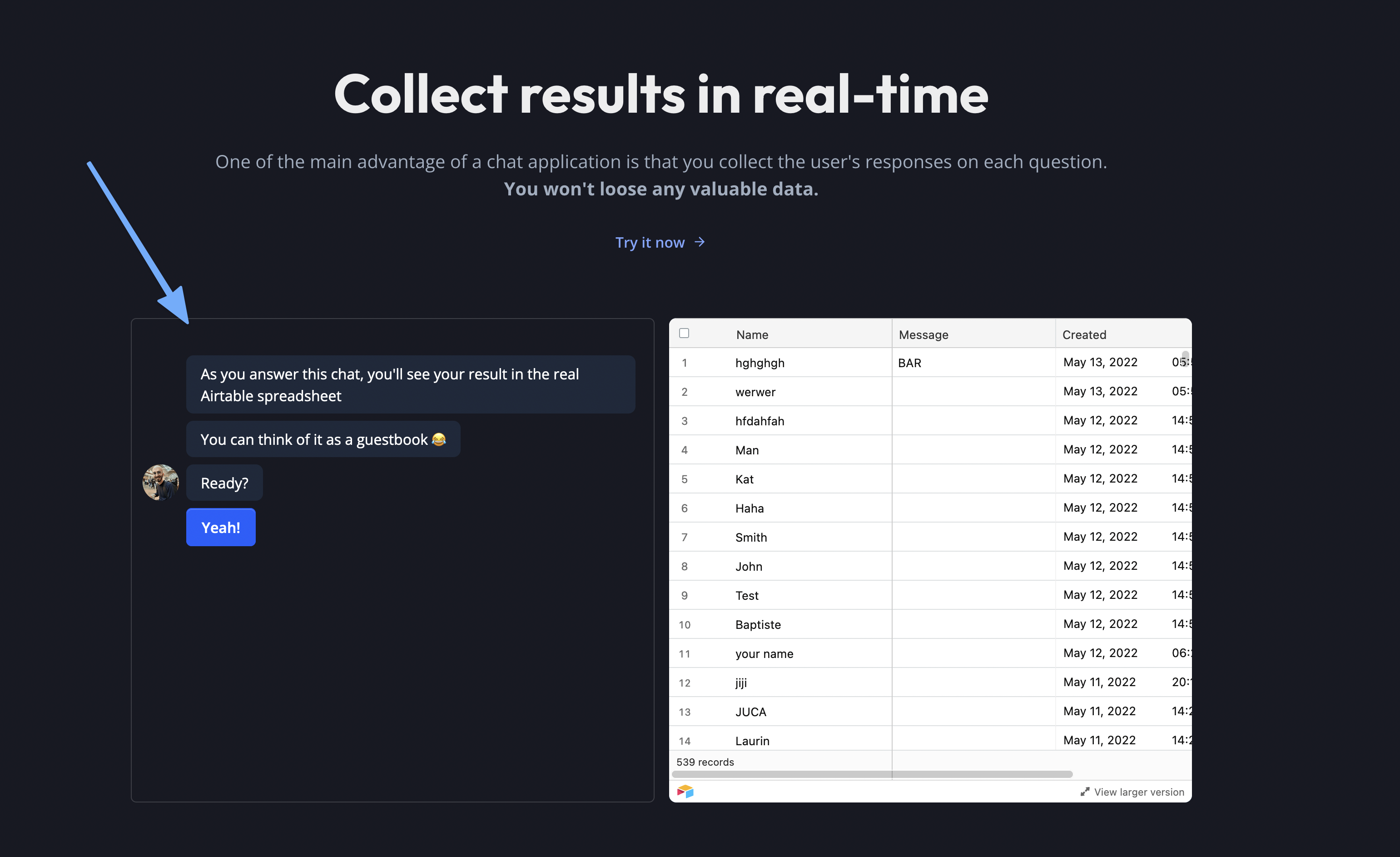
Embeds the typebot in a box with the size of your choice anywhere on your app. This is what is used on Typebot homepage:
 You can also set the width to `100%` and the height to `100vh` to make it take the entire page dimensions
## Popup
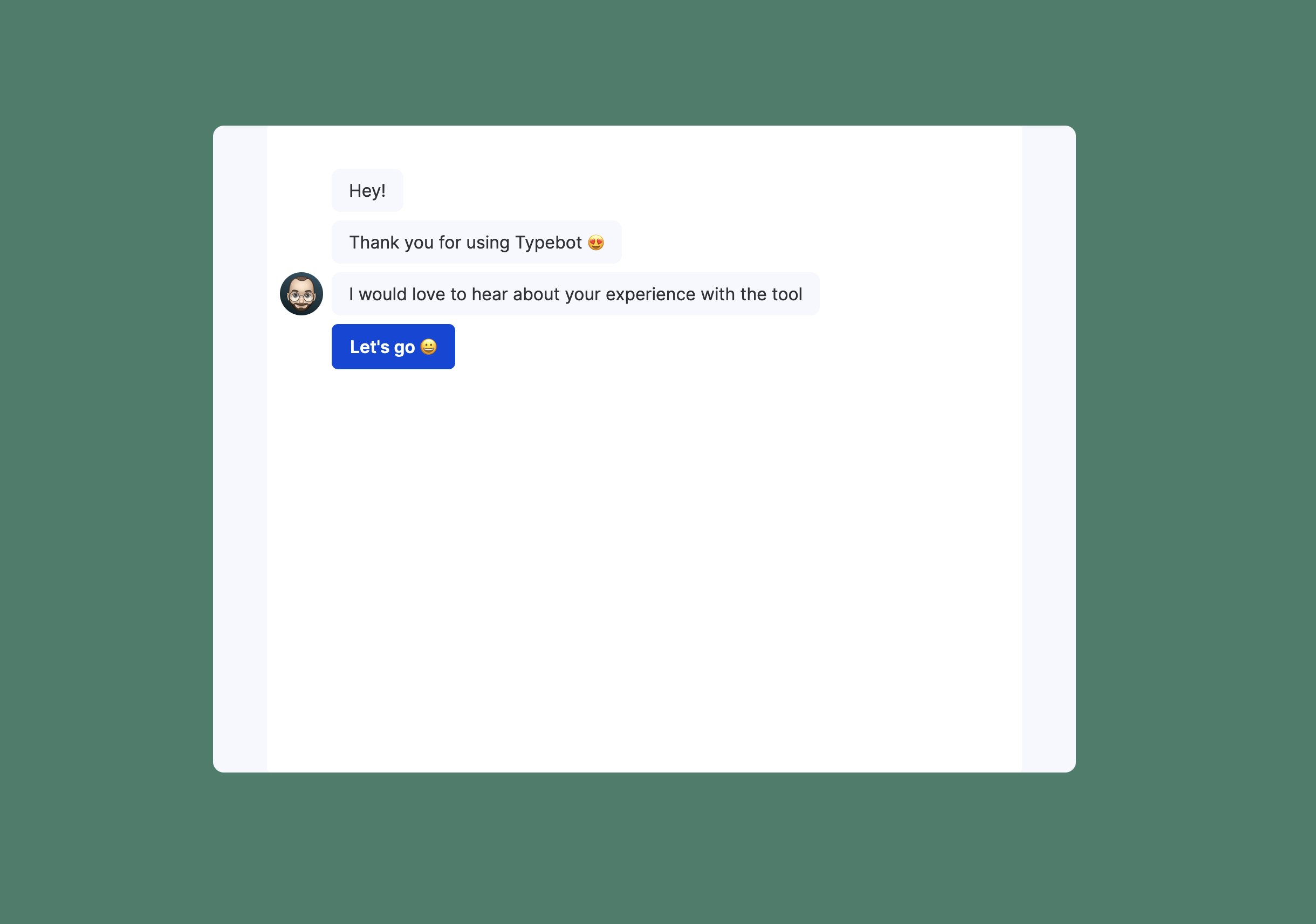
Embeds the typebot in a Popup that overlays your website. It can be triggered after a delay or with a click of a button for example
You can also set the width to `100%` and the height to `100vh` to make it take the entire page dimensions
## Popup
Embeds the typebot in a Popup that overlays your website. It can be triggered after a delay or with a click of a button for example
 ## Bubble
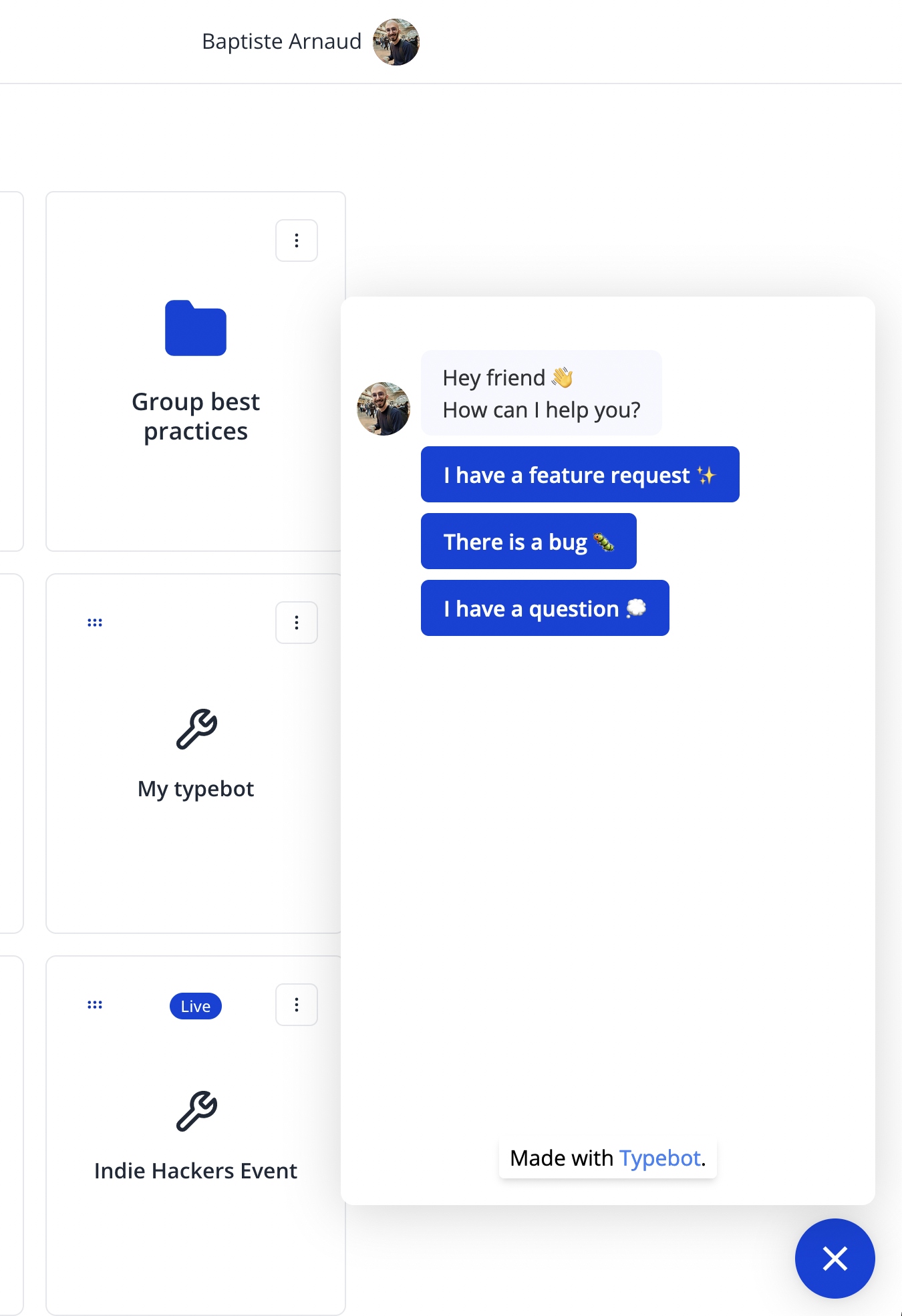
Embeds the typebot as a "chat bubble" at the bottom right corner of your site. Can be triggered automatically or with a click. It can also come with a "proactive message".
## Bubble
Embeds the typebot as a "chat bubble" at the bottom right corner of your site. Can be triggered automatically or with a click. It can also come with a "proactive message".