> ## Documentation Index
> Fetch the complete documentation index at: https://docs.typebot.com/llms.txt
> Use this file to discover all available pages before exploring further.
# How-to
### How to find my `typebotId`
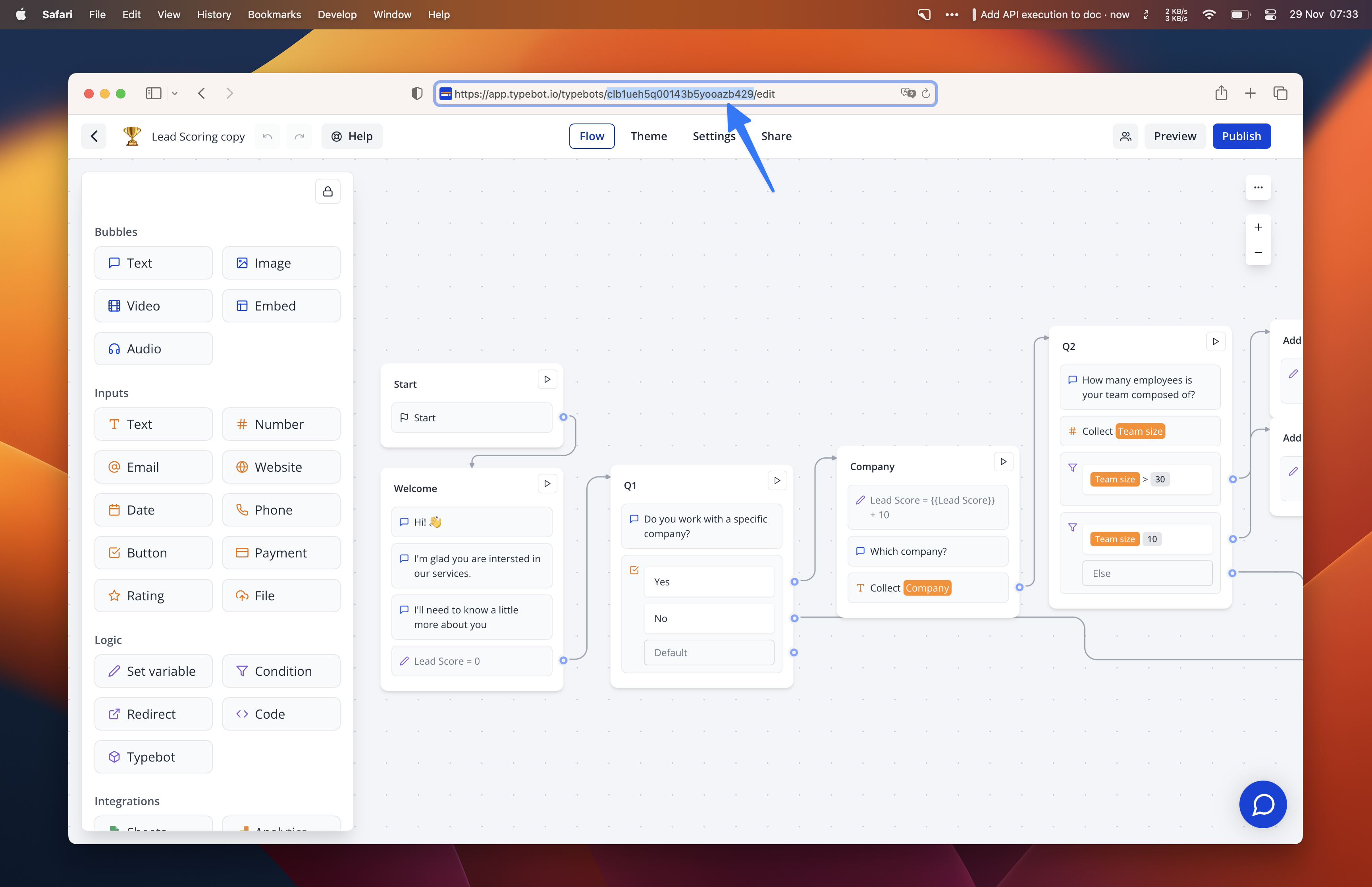
If you'd like to execute the typebot in preview mode, you will need to provide the ID of the building typebot available in the editor URL:
 ### How to find my `publicId`
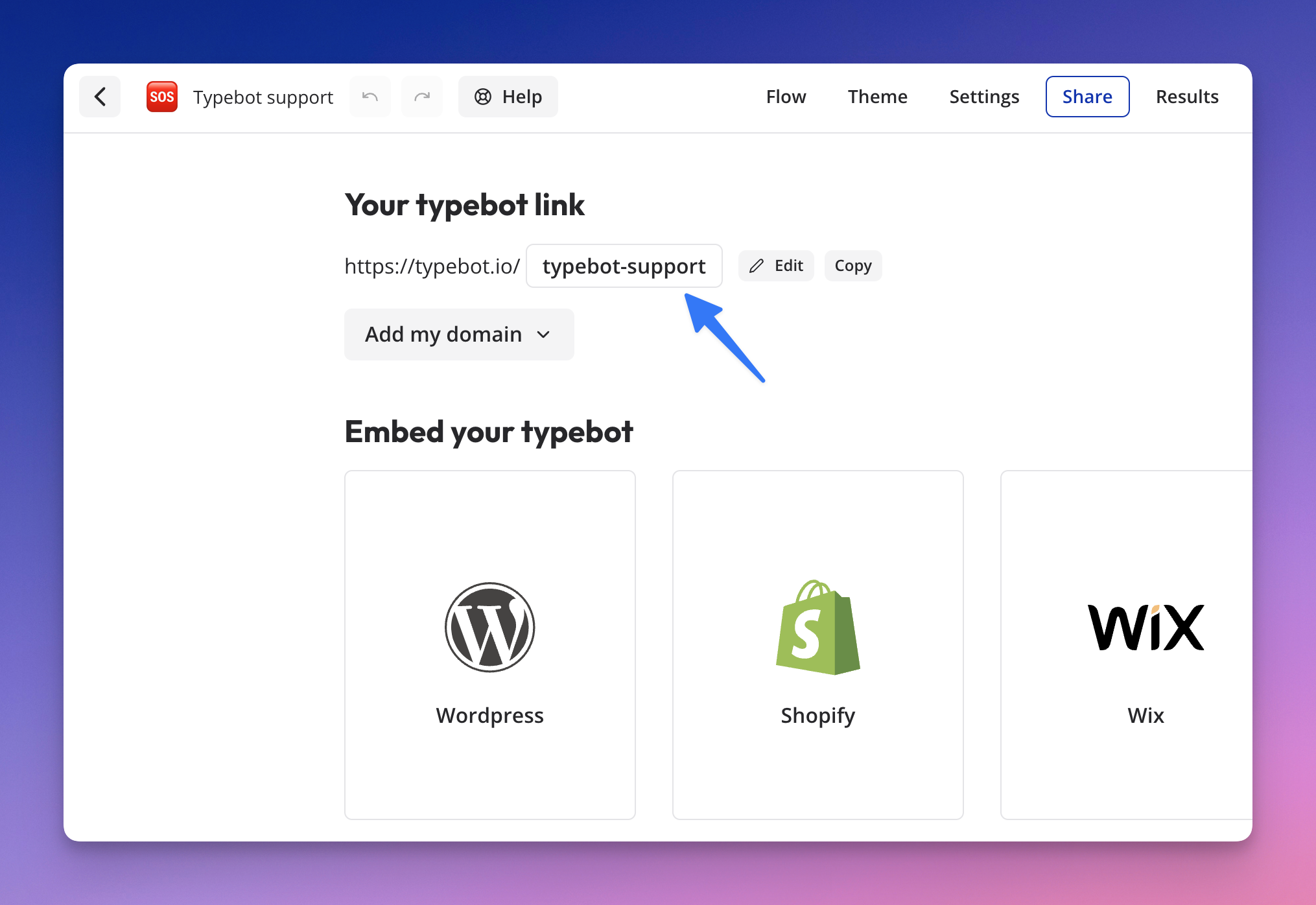
For published typebot execution, you need to provide the public typebot ID available here:
### How to find my `publicId`
For published typebot execution, you need to provide the public typebot ID available here:
 ### How to find my `workspaceId`
In your workspace dashboard, head over to `Settings & Members > Workspace > Settings` and copy the workspace ID
### How to handle stream
If you enabled stream, whenever a AI message should be streamed, you will receive that kind of JSON response:
```json theme={null}
{
"messages": [],
"clientSideActions": [
{
"type": "stream",
"stream": true,
"expectsDedicatedReply": true
}
]
}
```
The bot is ready to accept the message streaming. You now need to send the following query:
```sh theme={null}
curl -X POST https://typebot.co/api/v2/sessions/{sessionId}/streamMessage
```
Where `{sessionId}` should be replaced by the session ID you got from the start chat response.
This endpoint will send Server-Sent events with all the information to display the streamed message.
Once it is done, you can contine the flow by sending a [continue chat request](./chat/continue-chat) with the streamed message as the message content.
### How to find my `workspaceId`
In your workspace dashboard, head over to `Settings & Members > Workspace > Settings` and copy the workspace ID
### How to handle stream
If you enabled stream, whenever a AI message should be streamed, you will receive that kind of JSON response:
```json theme={null}
{
"messages": [],
"clientSideActions": [
{
"type": "stream",
"stream": true,
"expectsDedicatedReply": true
}
]
}
```
The bot is ready to accept the message streaming. You now need to send the following query:
```sh theme={null}
curl -X POST https://typebot.co/api/v2/sessions/{sessionId}/streamMessage
```
Where `{sessionId}` should be replaced by the session ID you got from the start chat response.
This endpoint will send Server-Sent events with all the information to display the streamed message.
Once it is done, you can contine the flow by sending a [continue chat request](./chat/continue-chat) with the streamed message as the message content.